1 General Information
1.1 Purposes
This User Manual introduces the DEEPSITE Document Insighter system including the interface and management functions to help users quickly log in, browse and use this system. And provide you with solutions to the problems encountered in the use of the system and how to access the resources and help.
1.2 System Overview
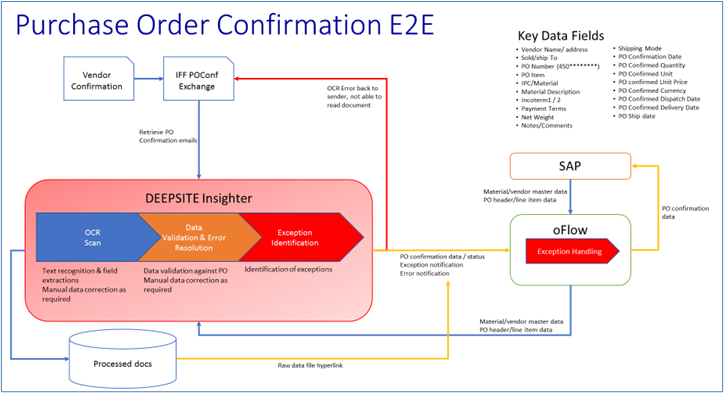
Document Insighter is a digitizing solution with AI-Powered Advanced Content Intelligence that can be quickly consumed as a service providing the ability to carry out a task like reading a document, digitizing an image or a table, extracting data interested, or any other tasks related to understanding and processing content as well as analyzing data. Document Insighter also provides auto validation/ontology against with the data from user’s database such as enterprise SAP using the extracted data from documents. In addition, Document Insighter supports user feedback and continuous learning to improve precision via the cloud-based portal.
2 Getting Started
2.1 Use Cases
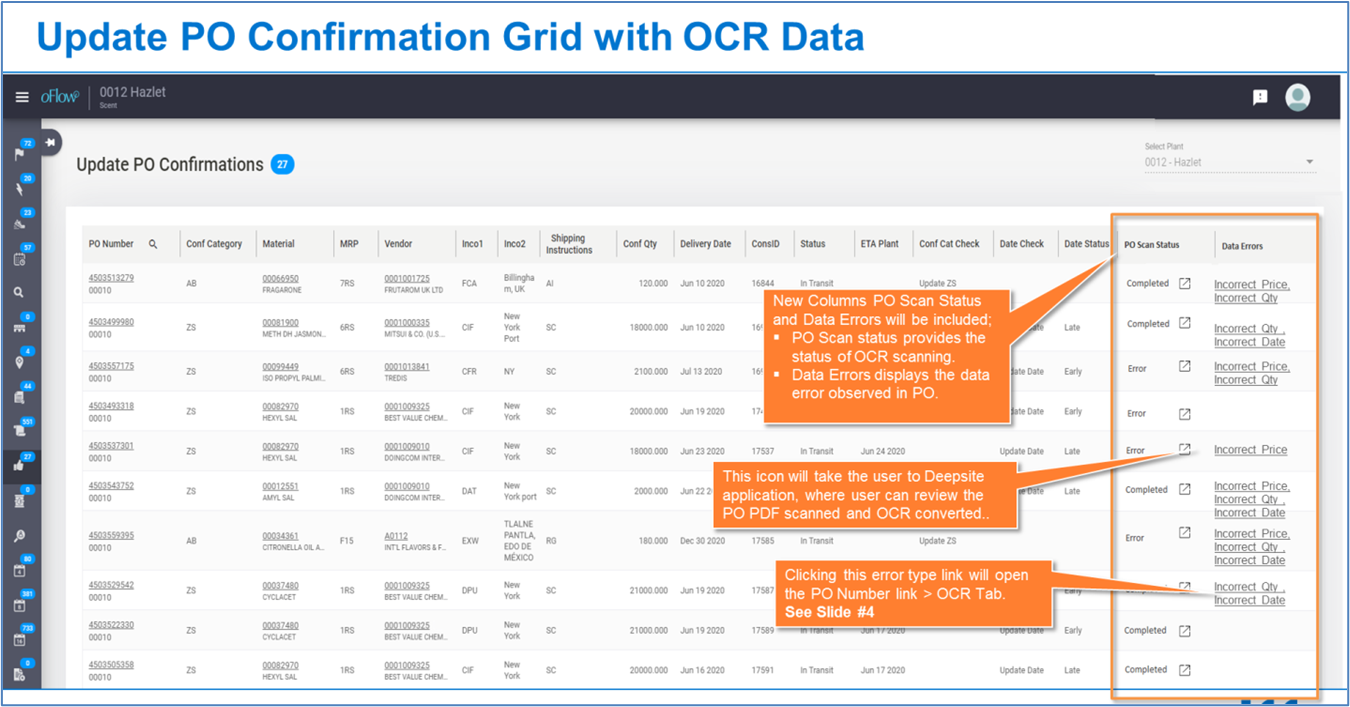
| Description | Clicking this jump icon should take the user to the DEEPSITE Insighter site from where the user can view more information |
| Trigger | oFlow Portal > RMP Actions > Update PO Confirmations > Jump icon |
| Actors | RMP Planners who has access to review and update PO Confirmations |
| Pre-condition | OCR should have scanned at least one PO Confirmation. oFlow should have original PO confirmation data from SAP. An email requirements and limitation file can be found at Appendix section of this document. |
 ## Logging on After clicking the jump icon in oFlow or enter the URL https://document-insighter.godeepsite.com to see the login website as shown:
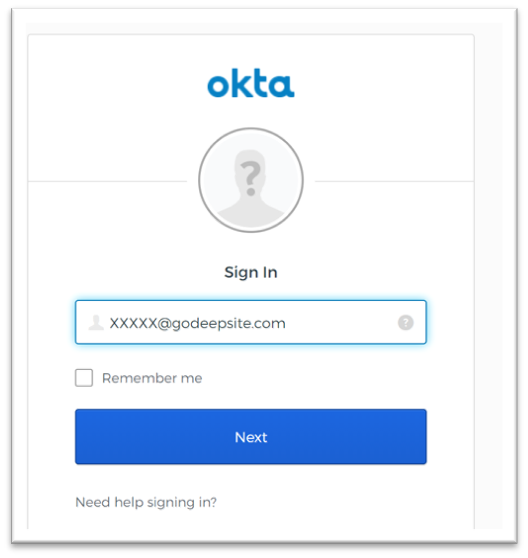
Users can log in the DEEPSITE Insighter portal by using their authorized account name and password.
2.2 Role Types
Users belonging to different role types will have different permissions:
| Role Type | Access | User Profile | Permission Level |
|---|---|---|---|
| Viewer | view access site | users/technicians | default |
| Contributor | edit/contribute access | super users | restricted |
2.3 Review Page
2.3.1 Display and download the original documents and email
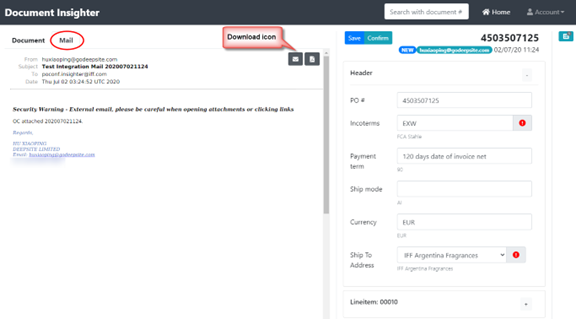
After logging in, the OC document if existed and email will be shown in the left side of the page. User can also down the PDF version of the document file or the eml version of the email by clicking the download button.

2.3.2 Extracted Result Display
The extracted data will be shown in the right side of the page including Header level Info and Lineitems level Info. Clicking the button ① in the following picture will display the historical extracted records of the Order:


Clicking the button ②, user can view the detail information for each lineitem extracted.
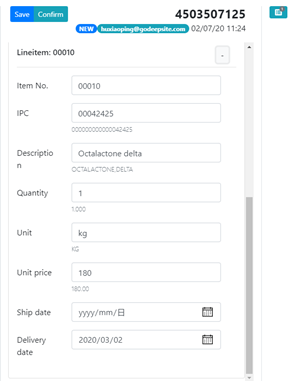
2.3.3 Extraction Validation
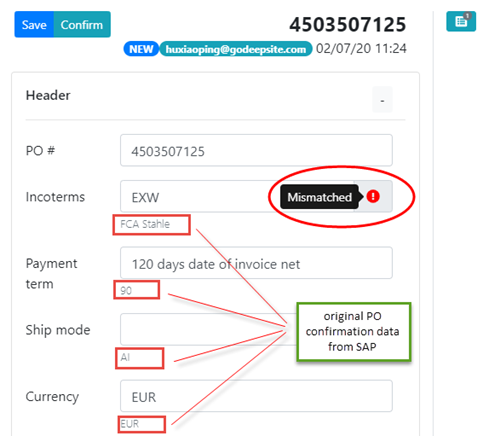
For Header part, the Incoterms, Currency and Ship to Address will be validated automatically by comparing with the Purchase Order data from SAP/Oflow which will be shown blow the extracted one in gray; For Lineitem part, the IPC, Quantity, Unit, Unit Price will be validated automatically. IF some of items exist validation error, such as ‘Mismatched’ or ‘Not Found’, it will be displayed next to the corresponding item. Following table shows the detailed validation logic for each extract item.
| Extracted Item | Check for Existence | Validate with oFlow | Validate Logic |
|---|---|---|---|
| Incortems | Yes | Yes | If DDP or DAP detected, will not validate the destination |
| Payment term | Yes | Yes | Will check if extracted value less than IFF required |
| Shipmode | No | Yes when it exists | Validate it via the “ShipMode Mapping” table if exists |
| Currency | Yes | Yes | |
| Ship to Address | Yes | Yes | |
| Lineitem No. | Yes | Yes | |
| Price | Yes | Yes | |
| Unit | Yes | Yes | |
| Quantity | Yes | Yes | |
| Description | No | No | No validation, only extract when it exsits |
| Ship Date | No | No | No validation, only extract when it exsits |
| Delivery Date | No | No | If neither Ship Date nor Delivery Date are detected, an error will be reported |
* “Check for Existence : No” means that if the related item is not detected by the system, the system will not report it.
“Check for Existence : Yes” means that if the related item can not be detected, the system will report an error message: “Not Found”.
2.3.4 Post to SAP Validation
The system also supports customized result validation and converting before posting to SAP, these features include:
- Number format converting Some vendors may use different number format such as “1,234.56”, “1.234,56” or “.78”, the system will convert these number to a SAP acceptable format and then post them to SAP.
- Unit Validation for Quantitative MICs For the Test Parameters, vendors may use different unit to show the test result, the system will check the consistency with IFF MIC Master Data. If it is not identical, an er ror message like “UOM ‘mg’ not match ‘kg’” will be posted to SAP together with the extraction result.
2.4 Main Functions
2.4.1 Revise and Repost
When user click the extracted data, the system will highlight the related text in the document in blue color to help user check the result quickly.
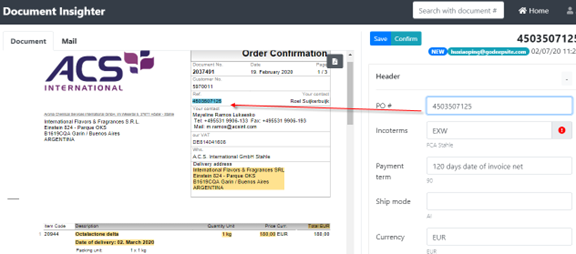
User can click the blank to fill data in or revise the incorrect extraction, and then click the ‘Save’ button to save and store the change.
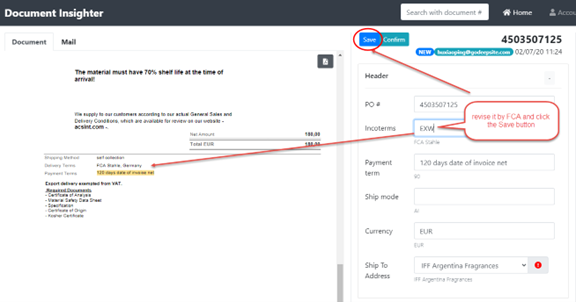
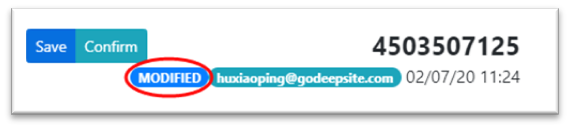
Once the modification has been stored, the status will be changed from ‘New’ to ‘Modified’. And the system will repost the revised result to the SAP automatically.
2.4.2 Issue Report
For most cases, even in some new formats, our A.I. engine can automatically detect and extract the tables and data points that users are interested in. For some processing failure cases, the system needs to collect samples in order to finetune the model and continuously optimize model performance. The system will collect user feedback on extraction issues in the following ways:
- Send email directly to support@godeepsite.com for issues like:
* Cannot access the Insighter web portal
* Insighter system related question or queries
* Or other general issues- Report issue for a specific document:
* Open OC document list by clicking the Insighter link in oFlow, the Insighter shows the documents related to the order No.

* Or you can open https://document-insighter.godeepsite.com/ directly, quickly access the search function at the top ribbon. Type the target order number, then press “Enter” to search related OC documents.
* Open the OC document in the list. Report issue manually by clicking the “Report Issue” button. Pick an issue category, like “IPC/Extraction” and leave your comment in the dialog.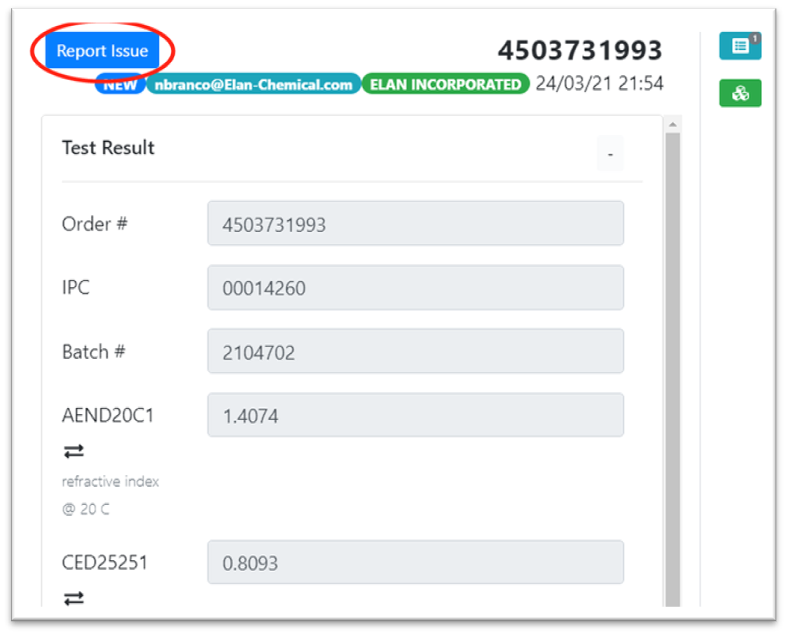
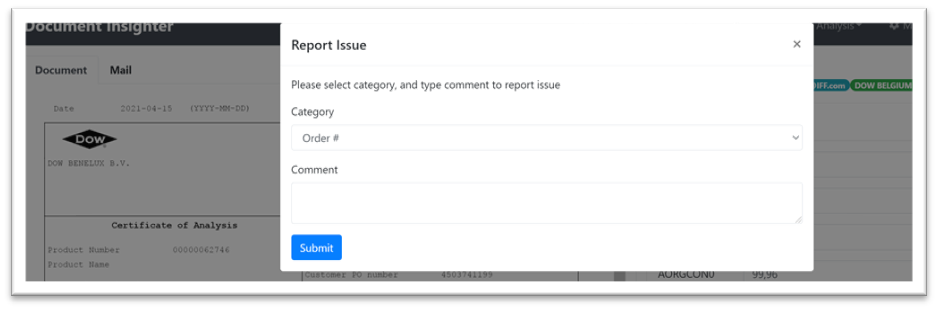
* The system will forward this issue to our Technical Support team, the team will follow up on the issue, and update you within 4 days.2.4.3 Quick Search Area
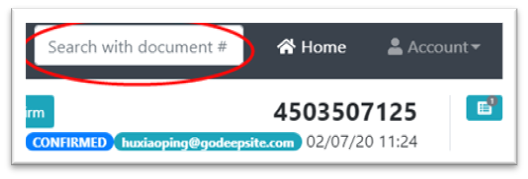
Users can quick access the search function at the top ribbon. After entering the PO number here, it will jump to the corresponding review page.
2.4.4 Homepage
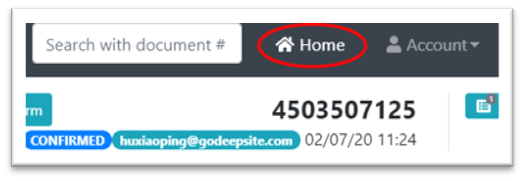
The system can archive data automatically with convenient and rich search capabilities. After logging in, click the “Home” button in the top ribbon to enter the home page, as shown.
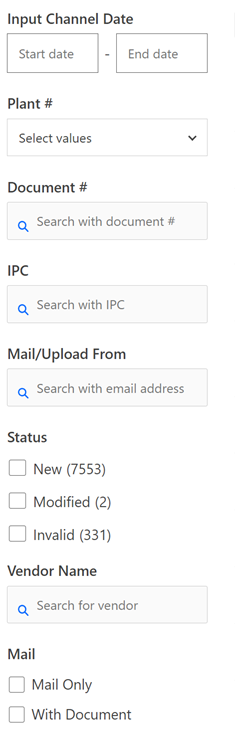
The left filter function bar provides users with more detailed classification and filtering functions:
- “Input Date”: The email received date or uploaded date.
- “Document #”: The number of OCR document, like PO number.
- “Plant #”: Filter all the extractions by IFF Plant ID.
- “IPC”: Filter all the extractions by IPC.
- “Status”: Following up status such a “New”, “Modified”, etc.
- “Vendor Name”: Filtered by vender name.
- “Mail From/Upload By”: Filter all the extractions by User’s email address.
- “Mail/Document”: Filtered by the type of OC(only email or email with documents attached).
2.5 Error Message Description
The system may push following message to oFlow API, users can check this table for better understanding the meaning of each one.
① Status: Proceed
| # | Message | Description | Remark |
|---|---|---|---|
| 1 | Without any issue | No error found | |
| 2 | Sentiment -Simple Confirm | If no attachment detected, Document Insighter will do the sentiment analysis automatically. The result will be shown in the upper right corner of the review page |
② Status: Validation Error
| # | Message | Description | Remark |
|---|---|---|---|
| 1 | ‘ValidationErrorsCount’: X | System will count the number of “Mismatched/Not Found” | |
| 2 | ‘lineItemsInOflowNotFoundCount’: X | System will count the item which recorded in SAP but vendor did not listed in doc and push the corresponding message to oFlow | |
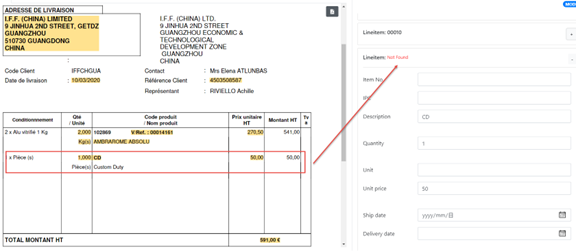
| 3 | ‘lineItemsNotInOflowCount’: X | System will count the item which cannot find in oFlow and push the corresponding message to oFlow | Like: duty, gift, package,etc.. |
③ Status: Requirements Error (Details about mail requirements, please refer to Appendix Section)
| # | Message | Description | Remark |
|---|---|---|---|
| 1 | Attachments Error - No Acceptable Attachment and Sentiment Uncertain | If there is no acceptable doc detected and not a simple confirm case by Sentiment Analysis, this message will be displayed and pushed | Like: a empty email or an unacceptable doc detected |
| 2 | PO Number Error - 0 PO Number Found | If there no PO number detected, this message will be displayed and pushed | |
| 3 | PO Number Error - 2+ PO Numbers Found | If there are more than one PO number detected, this message will be displayed and pushed | |
| 4 | Can Not Read the Order in oFlow | If A string of numbers similar to PO# was detected but cannot read the corresponding order info from oFlow, this message will be displayed and pushed | Like: vendor’s type error |
System will count the item which recorded in oFlow/SAP but vendor did not listed in doc and push the corresponding message to oFlow:
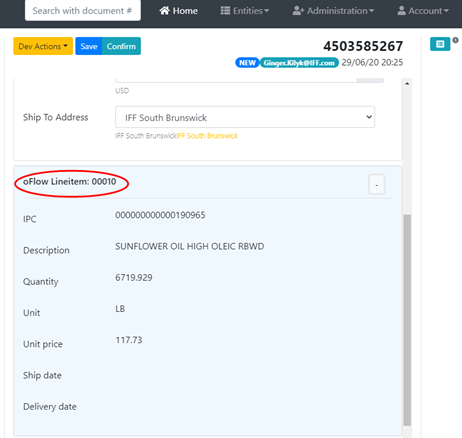
The portal will show the item which cannot find in oFlow and push the corresponding message to oFlow:
3 Technical Support
Help desk information including responsible technical contact phone numbers for assistance is currently available at the following period.
- Phone Support: 9:30 – 18:00 HKT, Mon to Fri
- Email Support (service desk connected): 24-Hours as per Section 3.3 of this agreement.
4 Document Insigher FAQ
Q: Can the system pull the result from oFlow as the extracted result?
A: No, oFlow data is only used to do the validation and the system always extract value from the document itself.Q: Why the extracted result contain extra text sometimes, for example, Payment term: Net 120 Days from Invoice Date unless otherwise stated. Why not only keep the number “120” as result?
A: The system try to keep all the related text in terms of the extracted key for user’s review if needed. If there is no error message shown behind the result, which means that the system understands they are matched.Q: Why there is no error reported when the extracted result of “ShipMode” is different from the value in oFlow, for example, extracted “DHL-Ocean” and value in oFlow “SC”?
A: The system do the validation on ShipMode by using the table “ShipMode Mapping.xlsx” prepared by IFF staff before and the system understand “DHL-Ocean” is one kind of “SC”, “Kilogram” is equal to “KG” and so on. If there is no error message shown behind the result, which means that the system understands they are matched.Q: Can the system extract or calculate the Quanitity which are presented implicitly, for example, “3 DR, 175KG/DR” in vendor’s OC document and “525 KG” in oFLow?
A: No, the system can not calculate this kind of presentation and the validation result may be “Mismatched”. User may need to cummnicated with the vendor to write down the exact quantity in the table.Q: The system extract some package or container in the table as lineitem, do these items will post to oFlow?
A: No, it will not. The system will check if the lineitem extracted is in your purchase order, if not, it will only present in the portal and no related data will post to oFlow.
5 Appendix
5.1 Email Limitation and Requirements
- Do not send the same PO Confirmation to this mailbox multiple times.
- Please note that insighter.iff.poconf@godeepsite.com email address is only for PO Confirmation. This email address is connected with our automated PO Confirmation extracting system. Our colleagues are not checking the query emails here.
- If you have any OC related question or queries, please contact IFF customer service mailbox.
- Please note that our system can read PDF/JPG/PNG/TIF format and the COA documents should be attached directly to the email. The size of one e-mail can’t exceed 5MB. Our system is not able to open attached emails and Zip folders.
- The recommended email title format for single batch case is: PO number _ IPC number, for example 4500001234_00001234.
- One PDF document should contain only one PO number.
- If you would like to submit multiple PO Confirmation/PO Number, please make sure that they are separated one by one.
- The system is not able to open attached emails and Zip folders. In case you have attached an PO confirmation image in any other format, your confirmation will be not handled.