1 General Information
1.1 Purposes
This User Manual covers the DEEPSITE Document Insighter for Religious Certificate Digitalization system. It provides comprehensive guidance on how to use the system for processing religious certificates (Halal and Kosher), managing document workflows, and handling data extraction and mapping. This manual aims to help users effectively utilize all system features, from document processing to integration with enterprise systems.
1.2 System Overview
DEEPSITE Document Insighter for Religious Certificate Digitalization is an AI-powered solution specifically designed for processing and managing religious certificates. The system incorporates several key capabilities:
Text Recognition & Extraction: Utilizes OCR technology to accurately extract key information from religious certificates, including agency names, certificate types, issue dates, and product codes.
Input Channel Management: Supports multiple document input channels including email mailbox integration(religiouscertifications@iff.com), direct uploads, and automated portal scanning for efficient document processing.
Plant Mapping: Implements a comprehensive mapping system to correlate plant addresses and information across different certification documents, ensuring accurate facility identification and classification.
Product Code to IFF Mapping: Provides a robust mapping system to convert product descriptions from certificates to standardized IFF product codes, facilitating accurate product tracking and inventory management.
Integration Capabilities:
- Seamlessly integrates with enterprise systems including ServiceNow and SharePoint
- Supports automated data transfer through Clover Webhook API
Automated Agency Portal Processing(RPA tool):
- Implements RPA solutions for various certification agencies (OK Kosher, OUDirect, MUI & HALLA etc.)
- Automatically schedules and executes certificate retrieval and download from agency portals
- Analyzes and extracts products information in the certificates including:
- Sales codes and expiration dates
- Certificate types and plant information
- Other key certification details
- Generates individual product certificates following standardized naming conventions
Automatically syncs generated certificates to IFF SharePoint for Clover system retrieval
Continuous Learning: Features a feedback mechanism to continuously improve extraction accuracy and mapping precision based on user validation and corrections.
The system streamlines the entire religious certificate management process, from initial document capture through data extraction, validation, and integration with enterprise systems, while maintaining high accuracy and compliance standards.
2 Getting Started
2.1 Logging on
Open the browser and visit DEEPSITE Document Insighter - Prod / DEEPSITE Document Insighter - Staging for UAT to access the login page:
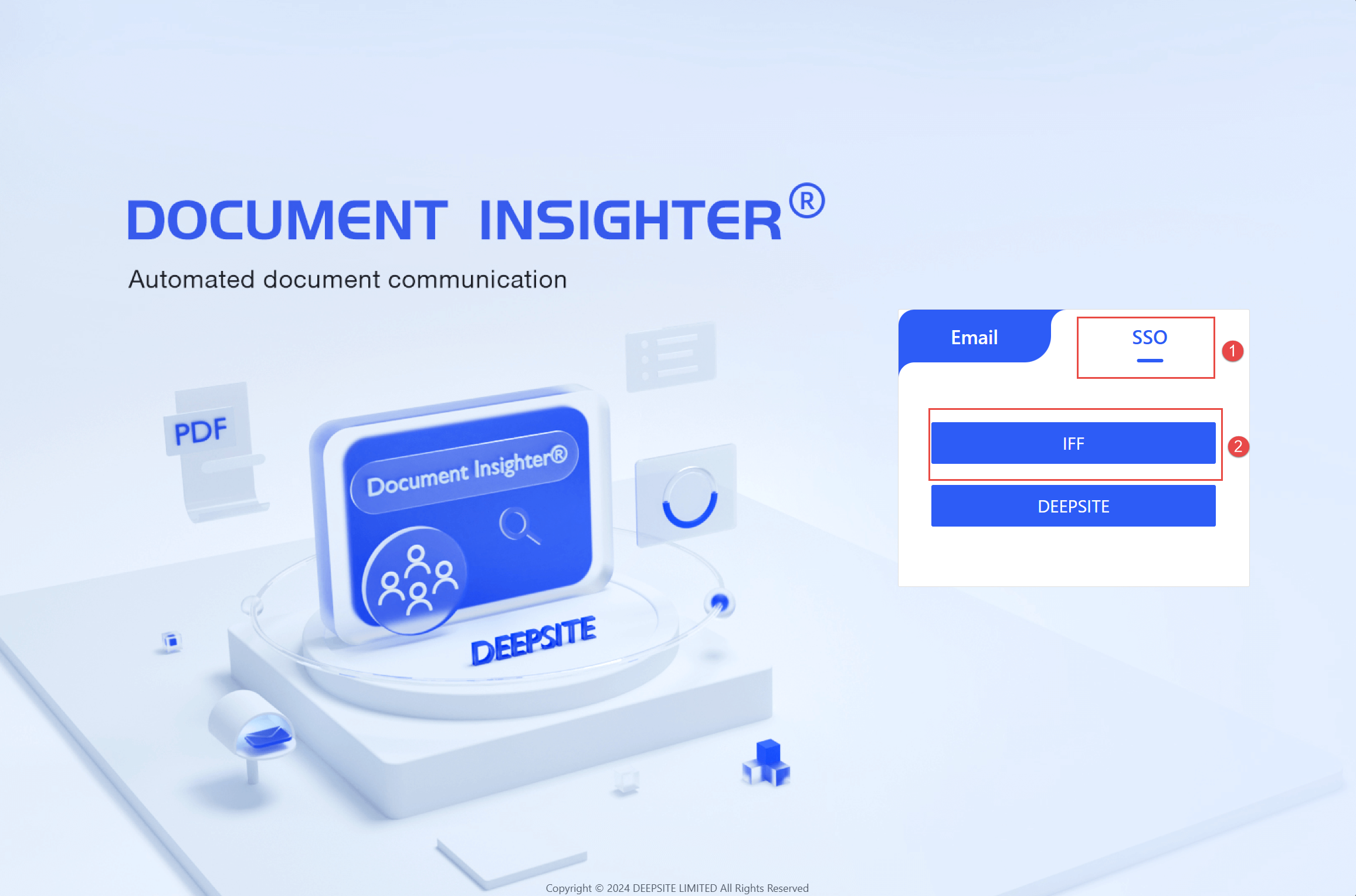
Log in to the DEEPSITE Insighter portal by clicking button ① “OSS”, selecting ② “IFF”, and entering your IFF ID and password.
2.2 Role Types
Please raise a ticket (Target Document Type: Religious Certificate) via IFF ServiceNow to get the access to the DEEPSITE Document Insighter portal. Users of various roles will have different permissions:
| Role Type | Access | User Profile | Permission Level |
|---|---|---|---|
| Viewer | view/access portal only | users/technicians | default |
| Contributor | revise the extracted results, add or revise the sales code mapping | users/technicians | default |
2.3 Sources Page
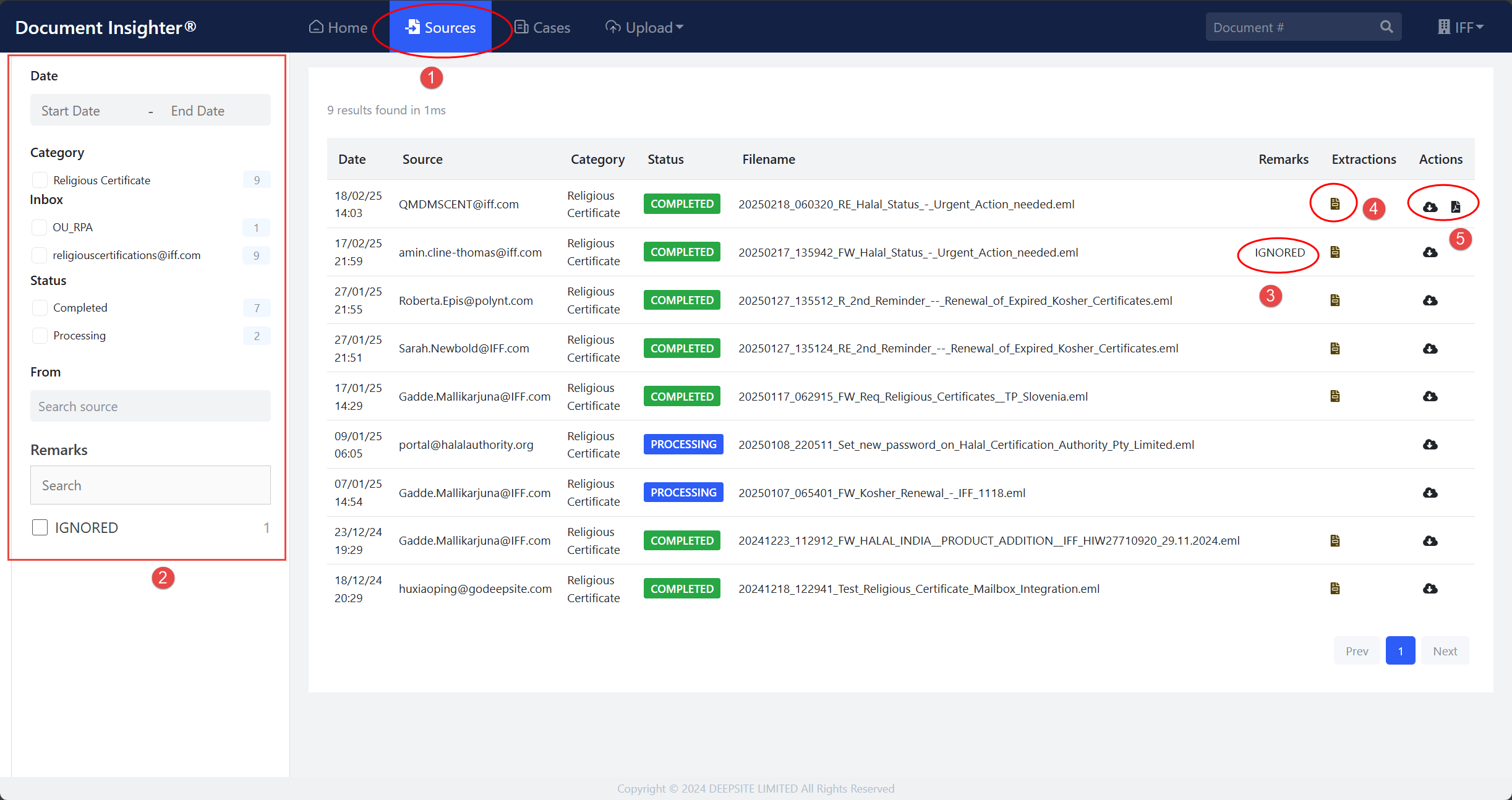
The Sources page provides a comprehensive view of all incoming religious certification documents from different sources like email, RPA tool and manual upload, and their processing status. Access this page by clicking the “Sources” button in the top navigation bar.
2.3.1 Filter Panel
The left filter panel ② offers various filtering options to help locate specific documents:
- “Date”: Filter documents by date range using Start Date and End Date
- “Category”: Currently set to “Religious Certificate”
- “Inbox”: Filter by input channels (Email: religiouscertifications@iff.com / RPA tool: Agencies’ Portal Auto Scraping / Manual Upload via Document Insighter)
- “Status”: Filter by processing status (Uploaded/Processing/Completed)
- “From”: Search by sender’s email address
- “Remarks”: If the source lacks necessary information, like email subject or PDF attachment, it will be marked as “Ignored.”
2.3.2 Document List View
The main panel ① displays a list of processed documents with the following information:
- Date: Document receipt timestamp
- Source: Sender’s email address or uploader’s email address or agency portal’s name
- Category: Document type (Religious Certificate)
- Status: Processing status indicated by colored labels
- UPLOADED: Document has been uploaded successfully but not processed yet
- PROCESSING: Document is currently being analyzed
- COMPLETED: Document has been successfully processed
- Filename: Original document name if uploaded via manual upload/RPA tool, or email subject if uploaded via email
- Remarks: “Ignored” ③ tag will be automatically added if the source lacks necessary information and the document will not be processed
- Extractions ④: Press the document icon to access the the page of the list of extracted products which specified in the original source document, see the picture in next section
2.3.3 Document Actions
- Click the “Download” icon to download the original eml file/document;
- Click the “Preview” icon to view the PDF if available
The Sources page serves as the main entry point for document processing, allowing users to track and manage all incoming religious certificates efficiently.
2.4 Homepage
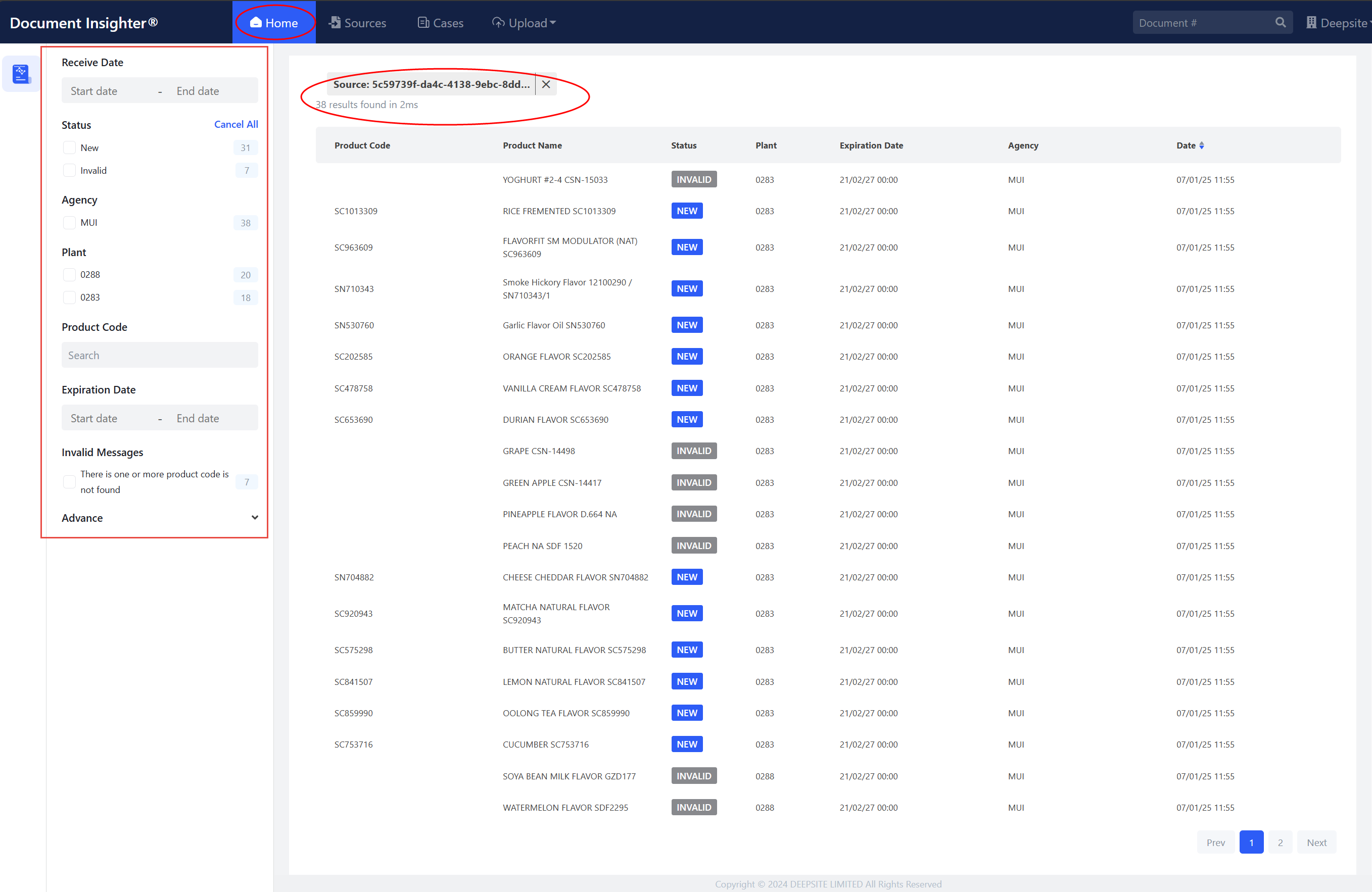
The Homepage displays all extracted products information from religious certification documents at a product level. After the system processes documents from Sources page, it breaks down multi-page certificates into individual product entries for easier management and validation. Users can access this page either directly by clicking the “Home” button to view all processed products, or through the Sources page to view products from a specific source.
2.4.1 Filter Panel
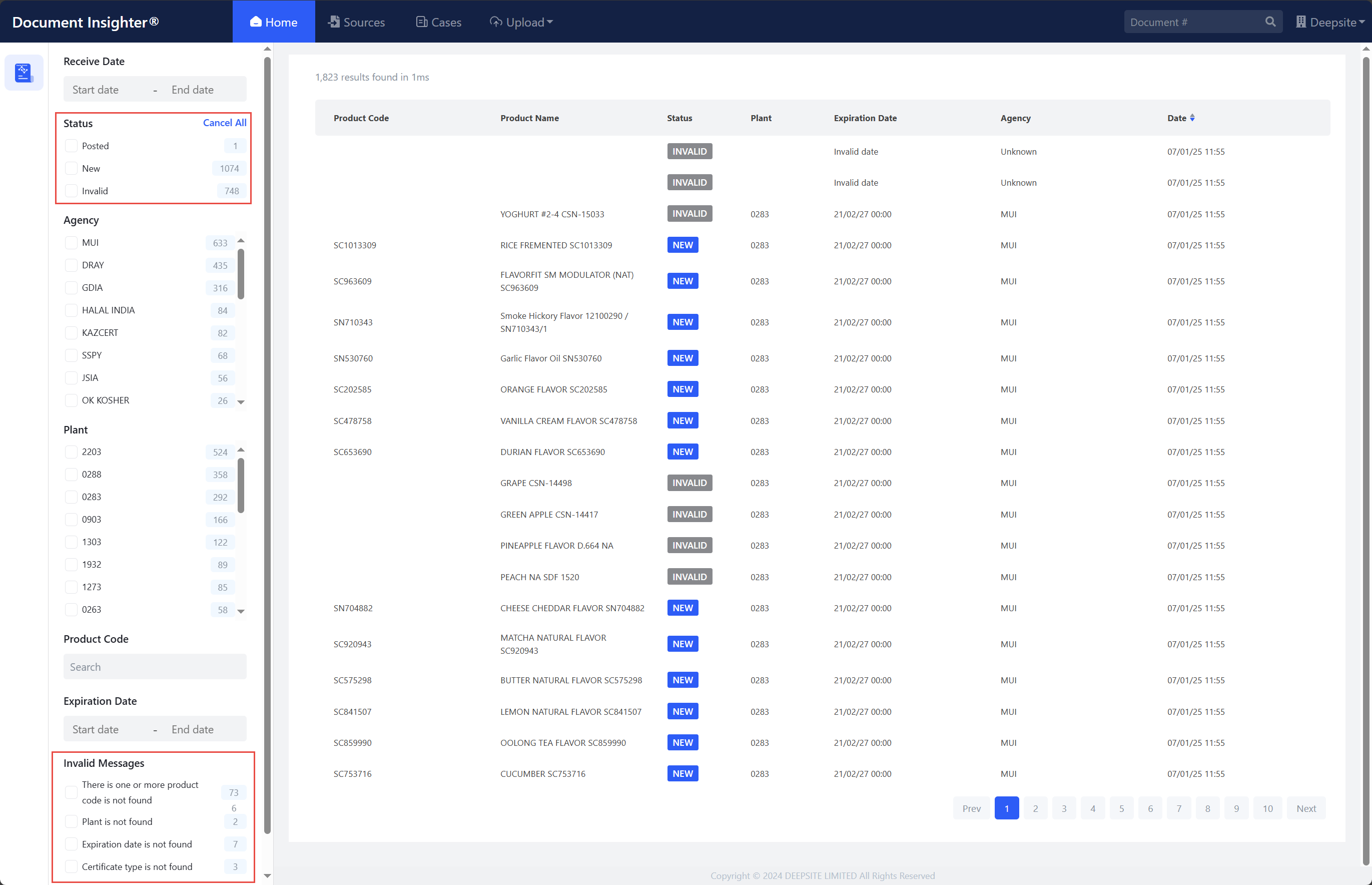
The left filter panel offers comprehensive filtering options:
- “Receive Date”: Filter by when the source document was received
- “Status”: Filter products by their processing status
- New: Successfully extracted and mapped products
- Invalid: Products with code mapping or other issues
- Posted: Only when all products in one source document are successfully mapped and then post them to IFF SharePoint and show as “Posted”
- “Agency”: Filter by certification agency
- “Plant”: Filter by IFF plant code
- “Product Code”: Search for specific IFF product codes
- “Expiration Date”: Filter by certificate expiration date
- “Invalid Messages”: Track and manage specific validation issues
2.4.2 Invalid Product Management
Users can efficiently manage invalid products by using the “Invalid Messages” filter to focus on specific issues: - Select “Product code is not found” to review and map missing product codes - Choose “Plant is not found” to correct facility information - Filter by “Expiration date is not found” to add missing dates - Select “Certificate type is not found” to specify certification types - Select “No products are found” to review if the case should be ignored
2.5 Extracted Result Review Page
The Extracted Result Review Page allows users to review and validate the extracted information from religious certificates. This page can be accessed by clicking the listed row in the Homepage.
 ### Page Layout The page is divided into two main sections: - Left panel: Original document viewer - Right panel: Extracted information and editing interface
2.5.1 Document Navigation
Users can switch between different views of the source document: - Document tab: View the PDF version of the certificate - Mail tab: View the original email content (if the source is from email)
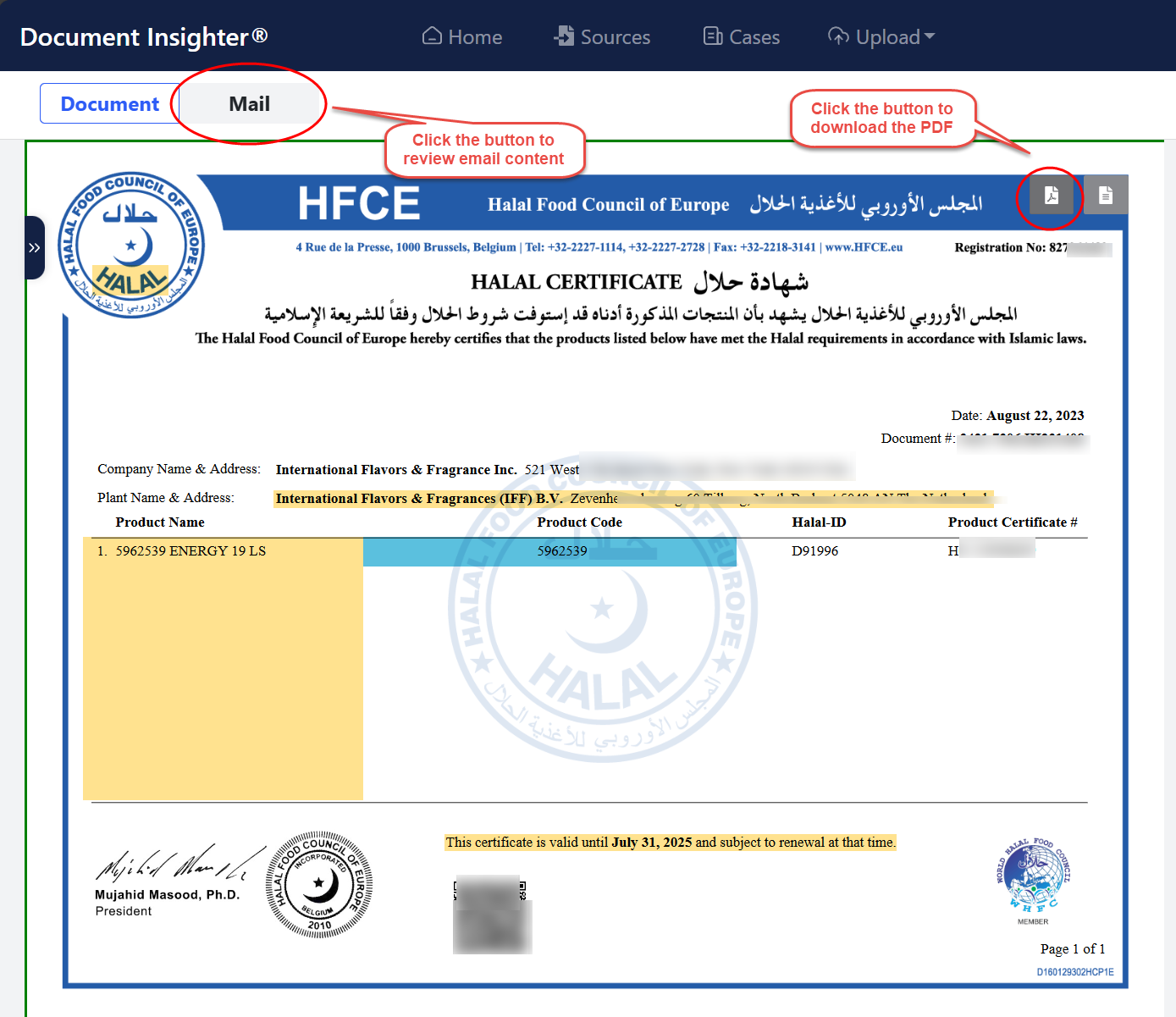
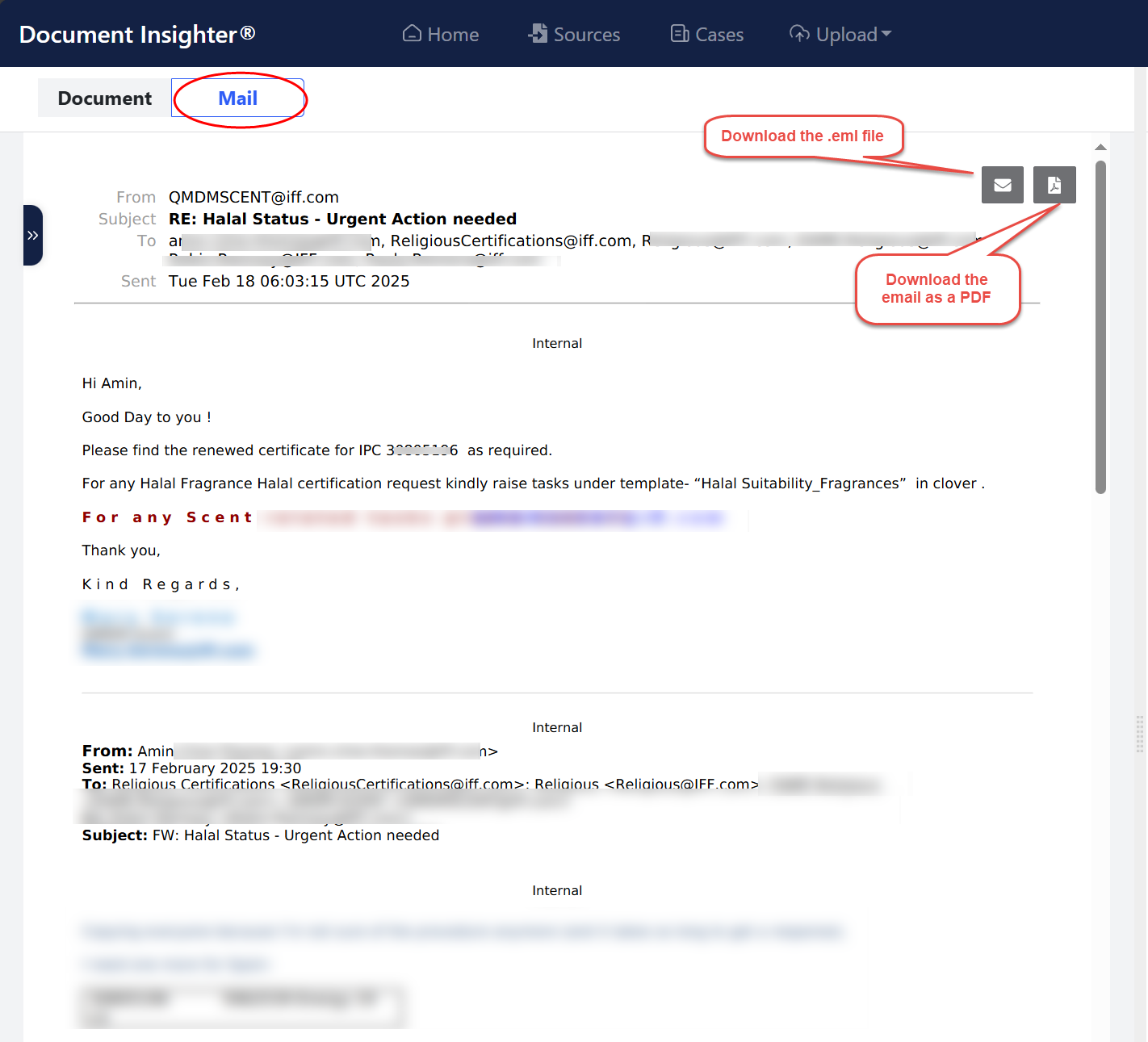
Click the icon annotated in the picture above to download the original document or email.
2.5.2 Extraction Results Panel
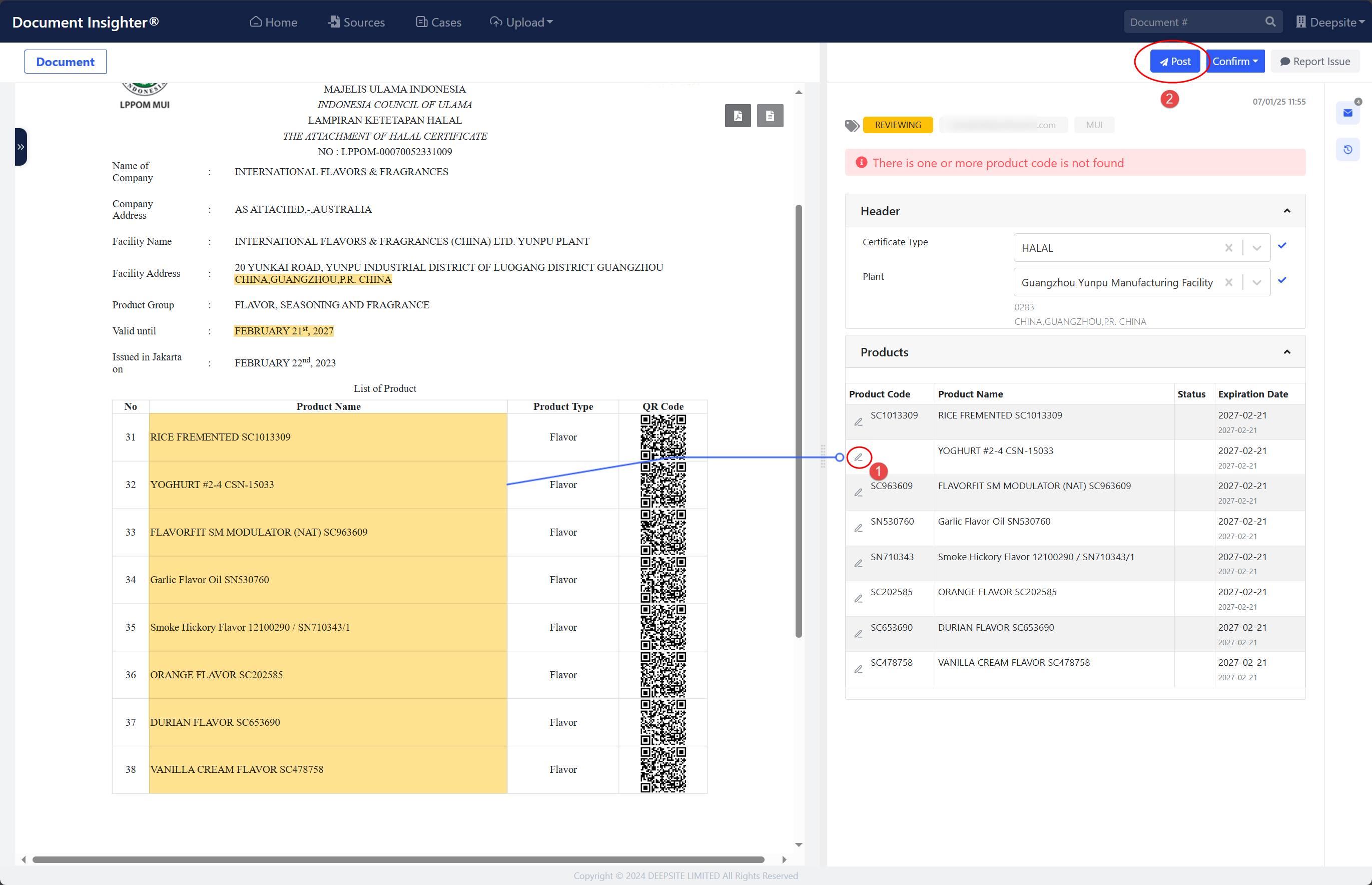
The right panel displays the extracted information in two main sections:
2.5.2.1 Header Section
Contains general certificate information: - Certificate Type: Shows the detected certificate type (HALAL or KOSHER) - Plant: Shows the extracted plant address and the auto mapped IFF plant code by the system
2.5.2.2 Products Section
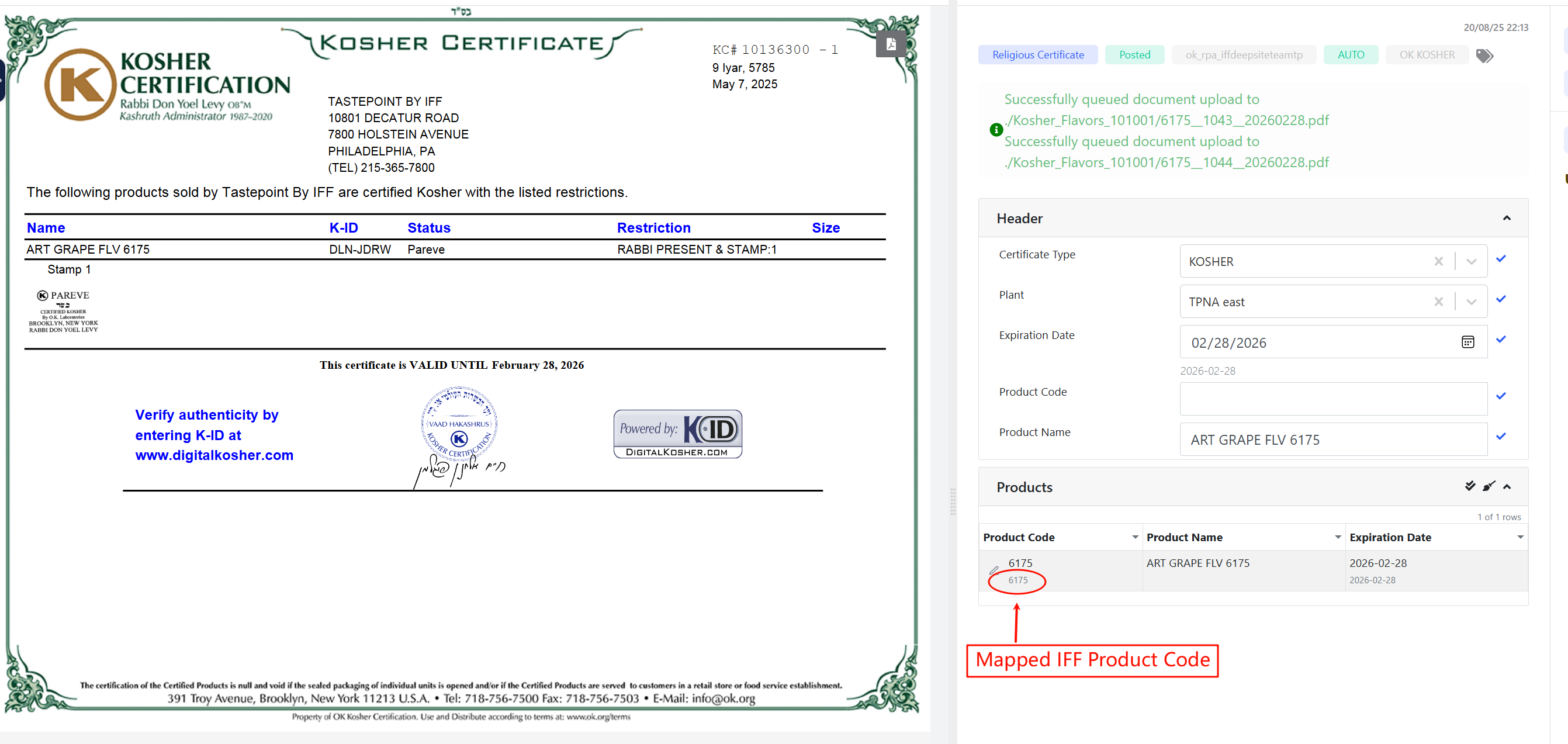
Lists all products extracted from the certificate: - Product Code: IFF sales code mapped by the system - Product Name: Extracted from the certificate - Expiration Date: The detected expiration date
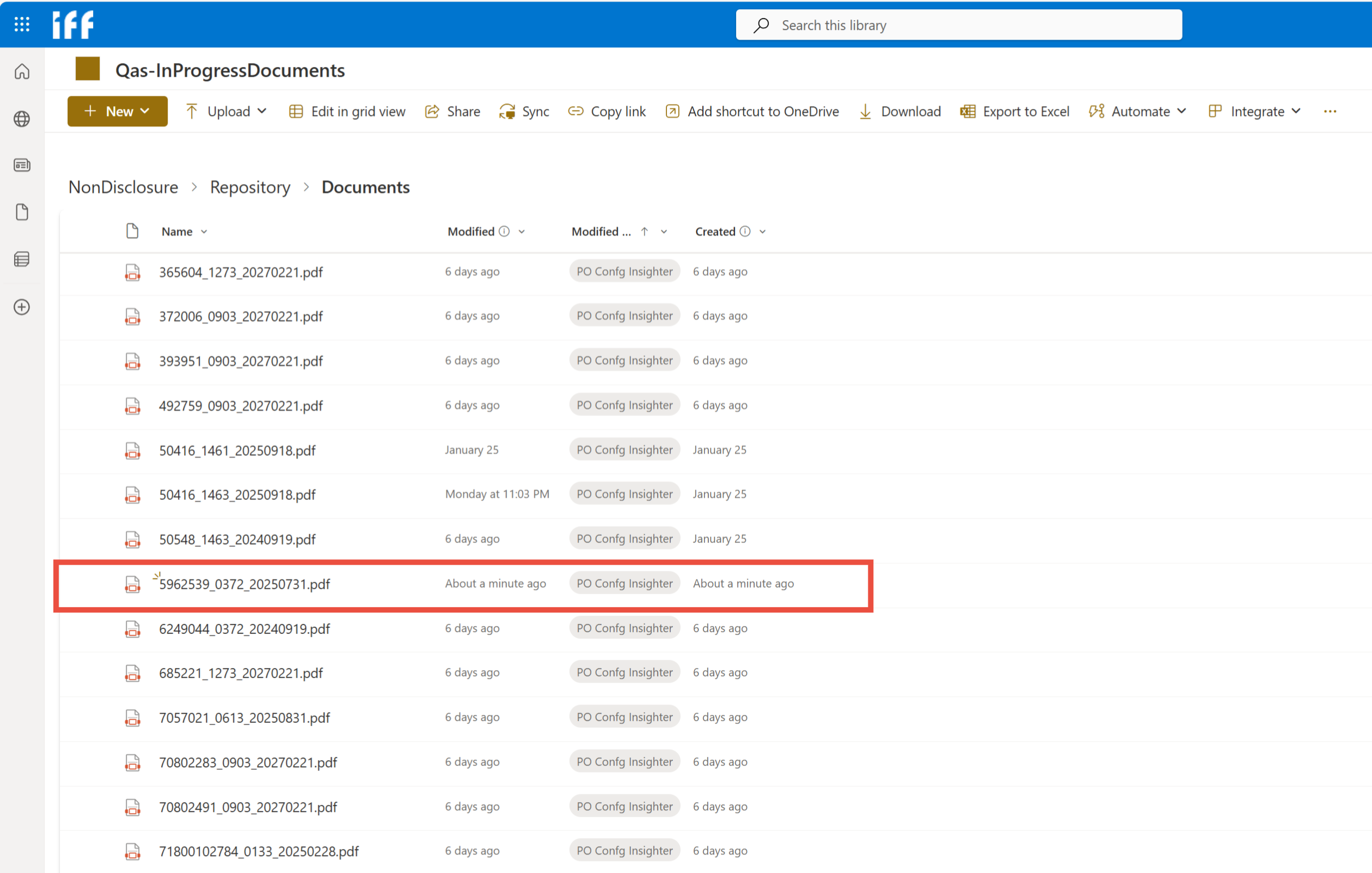
If all products are extracted correctly and mapped, the system will automatically post the document to IFF SharePoint. Clover team may access the post documents with naming pattern "ProductCode__PlantID__ExpirationDate.pdf" in the IFF SharePoint.
2.5.3 Validation and Editing
The system provides tools for adding and correcting the extracted information: Click the edit icon to open the edit panel and revise the extracted results.
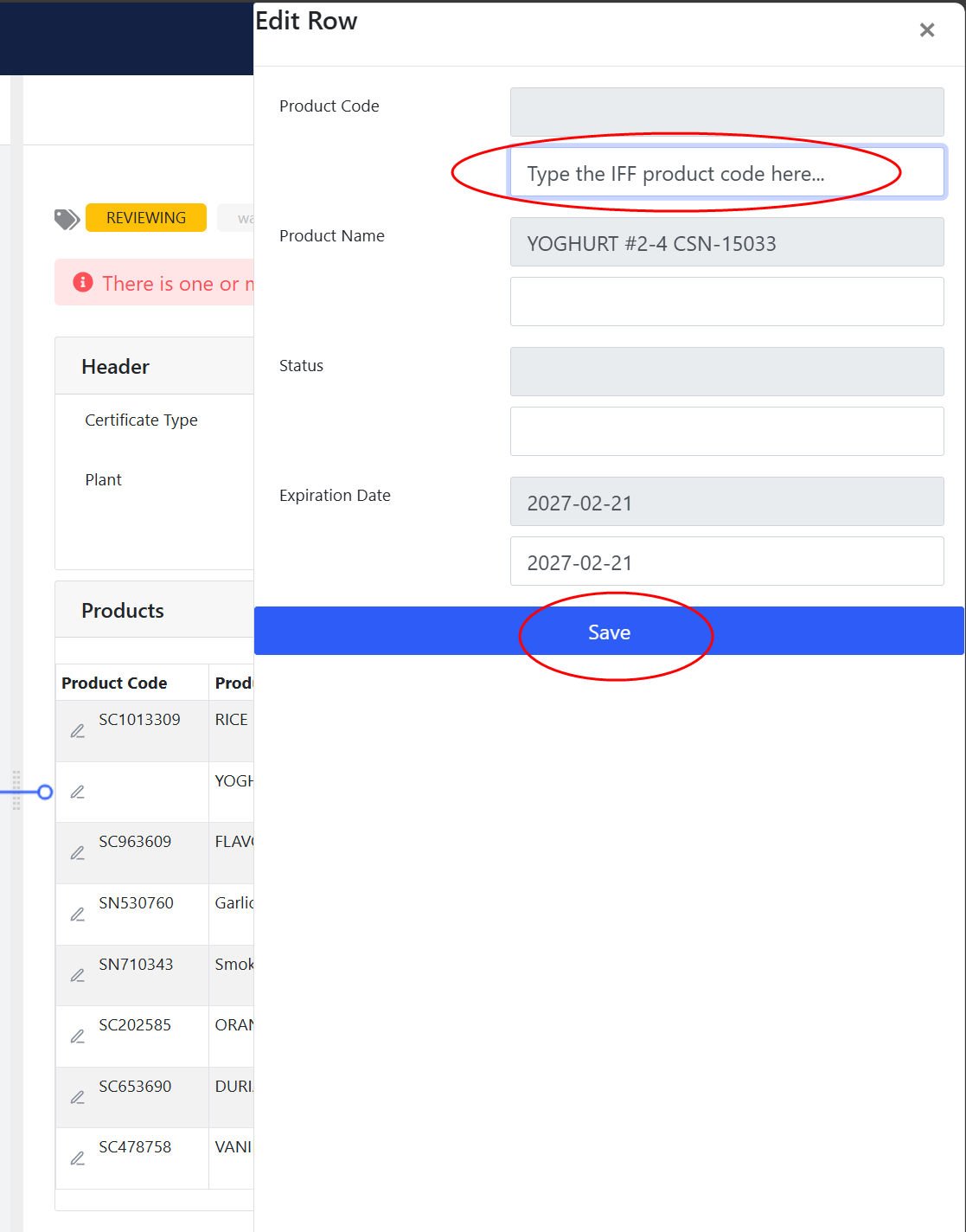
After clicking the “Save” button, a green check mark will appear behind the edited item. Hovering over the icon will display the last revision information.
If user manually edit the product code, user need to click the “Post” button to post the document to IFF SharePoint for the edit case.
2.5.4 Ignore the whole document if it is not relevant
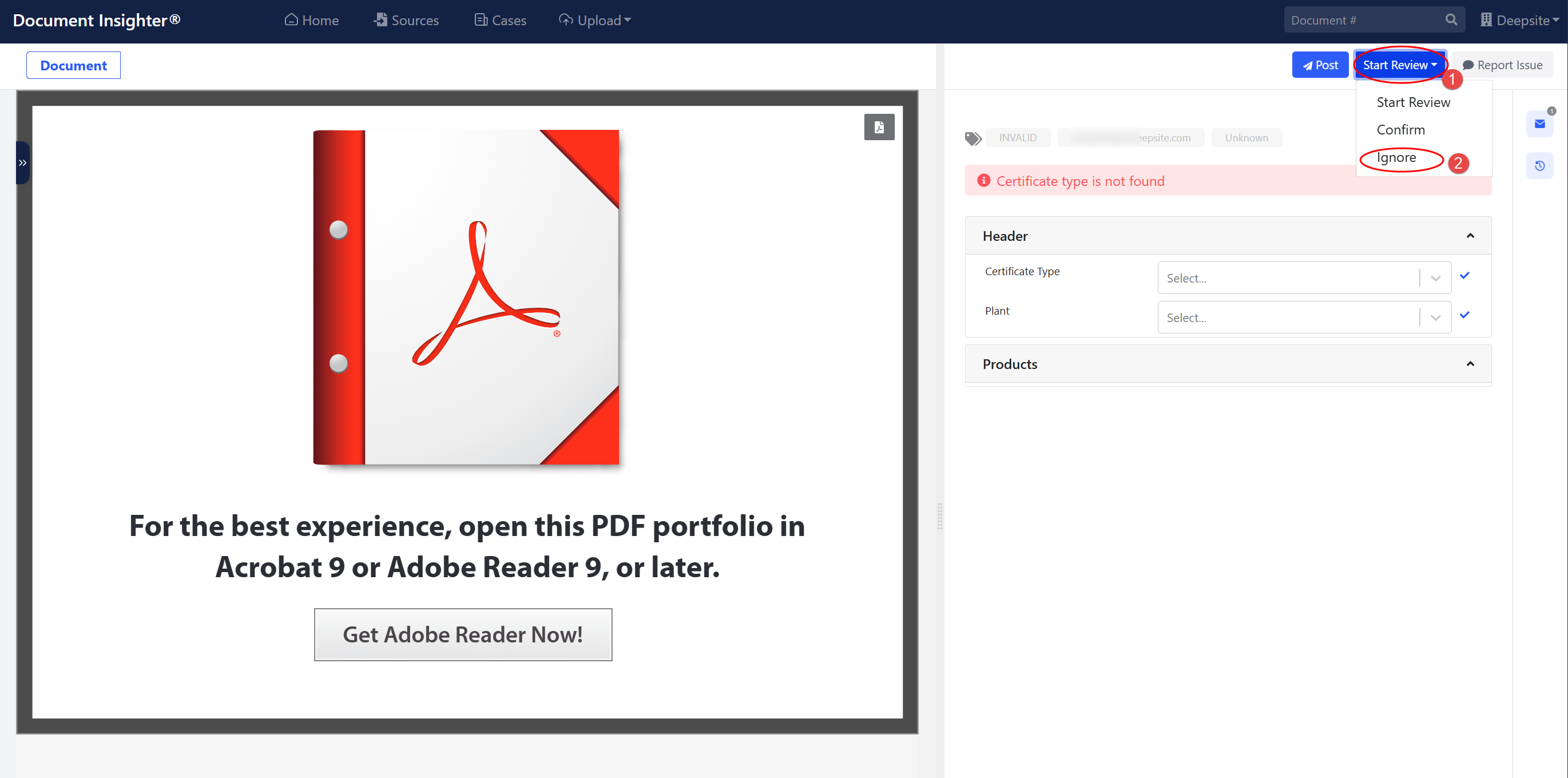
Click the “Ignore” button to ignore the whole document if it is not relevant and the document will not be processed. Users can archive these cases from the need follow up list INVALID case list to the Ignored case list.
2.5.5 Issue Report
The system will gather user feedback on extraction issues as follows:
- Send email directly to support@godeepsite.com for issues like:
- Unable to access the Insighter web portal
- Insighter system-related questions or queries
- Other general issues*
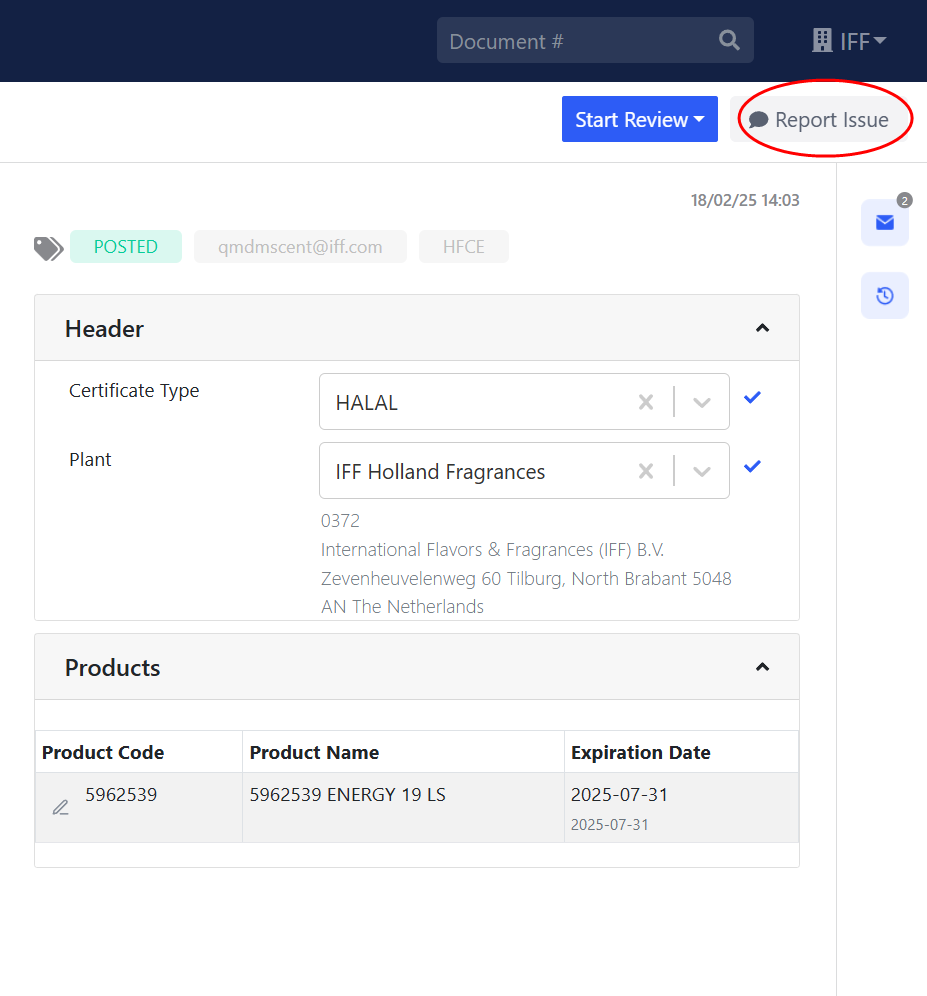
- Report issue for a specific COA document:
Report issue manually by clicking the “Report Issue” button. Pick an issue category, like “IPC/Extraction” and leave your comment in the dialog.
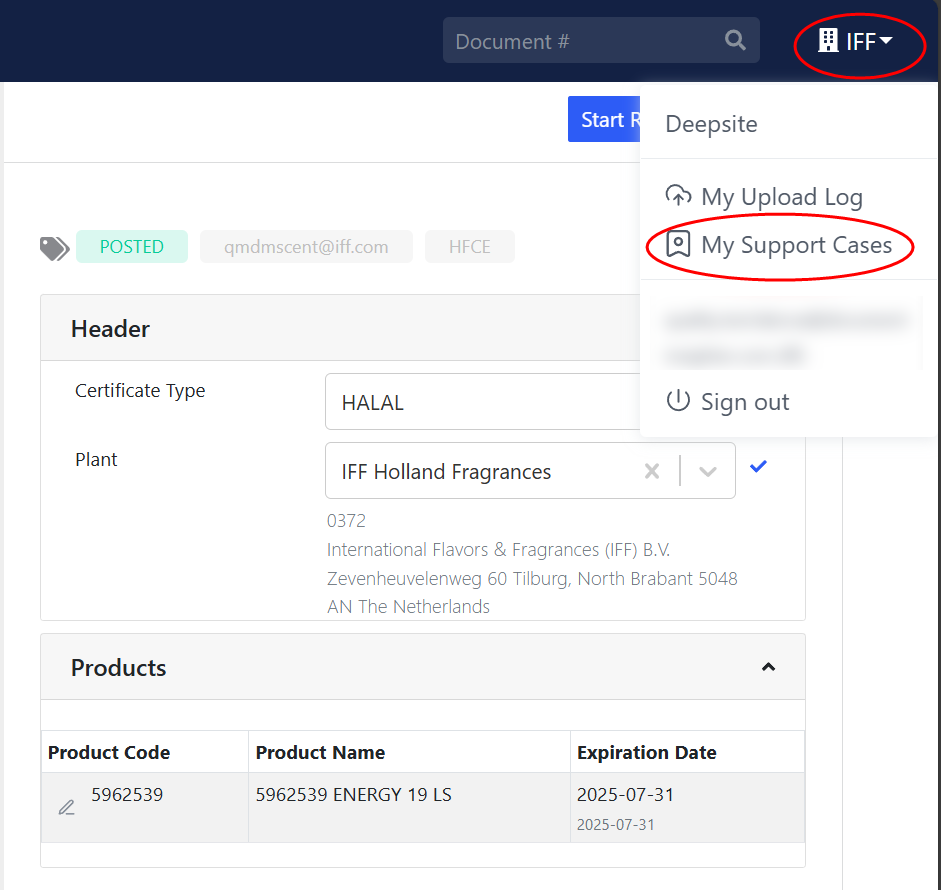
- Users can check their support case statuses by clicking “My Support Cases.” The issue is forwarded to our Technical Support team and they will follow up and update you within 4 days.
3 Manage Product Codes Function
3.1 Overview
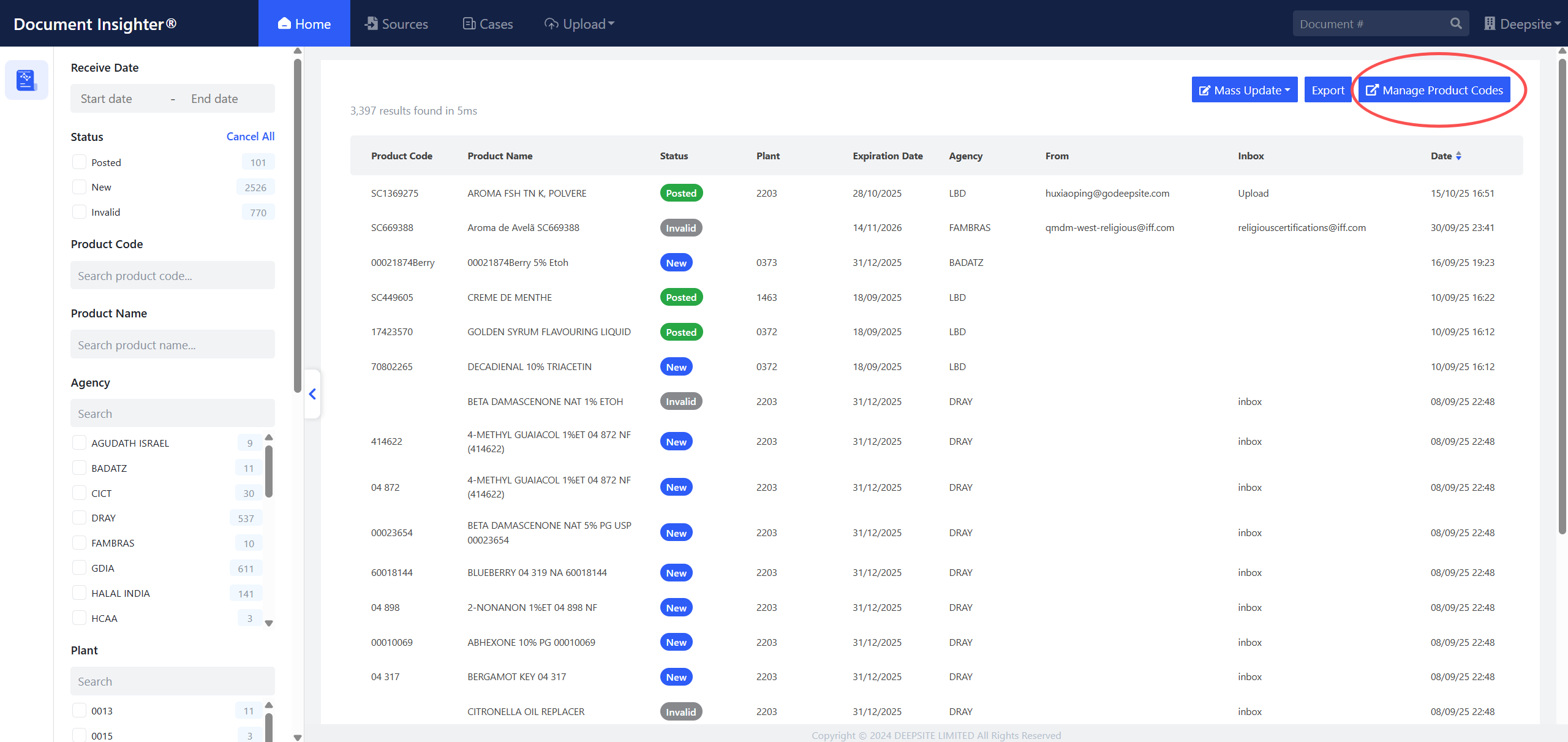
We offer a standalone Religious Product Management System allows users to create, edit, review, and manage product codes, ensuring that product information from religious certificates can be accurately mapped to IFF’s standardized product codes. Once a mapping task is completed, the system will automatically handle the product mapping for other extraction results with the same product name (from same agency) on certificate in the future.
3.2 Entry Point
Click the “Manage Product Codes” button to enter the system
3.2.1 Role Types
User should be assigned the “Code Management” role to access the system, if not, please raise a ticket (Target Document Type: Religious Certificate) via IFF ServiceNow and leave the comment “Please grant me the Code Management role” to get the access to the Religious Product Management System.
| Role Type | Access | User Profile |
|---|---|---|
| Code Management | create/approves the code mapping relationship between IFF product codes and religious certificate products | users/technicians |
3.3 Main Functional Modules
3.3.1 1. Review Certificate Products

3.3.1.1 1.1 Product Code Mapping Tasks Page
Click the “Review Certificate Products” button to enter the review page. This page displays all products need to assign the IFF product code, including the following information:
- Name on Certificate: Product name on certificate
- Religious Type: Kosher or Halal
- Agency: Certification agency
- Status: Status (New/Reviewed/Ignored, defaults to New)
- Product: IFF product code
3.3.1.2 1.2 Search and Filter Functions ①
The top of the page provides the following filtering options:
- Search Box: Search by product name or agency
- Religious Type Filter:
- All Types: Show all types
- Kosher: Show only Kosher products
- Halal: Show only Halal products
3.3.1.3 1.3 Add Product ②
Click the “Add Certificate Product” button in the top-right corner to create a new product mapping task.
3.3.1.4 1.4 Actions ③
Each certificate product row provides the following quick action buttons:
Quick Approve - Green check button:
- Only available when product is linked to an IFF product code (not null)
- Directly approve certificate product, status changes to “Reviewed”, and updating the code mapping in Document Insighter portal will be triggered.
Quick Ignore - Gray ban button:
- Ignore certificate product, status changes to “Ignored”
- If a product is ignored, the system will skip it and the extraction result will be posted to IFF SharePoint if other products are mapped.
Delete - Red trash button:
- Permanently delete that product mapping task
3.3.1.5 1.5 Export ⑤
We provide 2 ways to complete the product code mapping tasks:
- Add or map an IFF product code to an unassigned product one by one in the portal.
- Click the “Export” button to download the whole mapping tasks list as an .xlsx file, edit the file and upload it back to the portal via the Bulk Upload function, See section 4.
3.3.1.6 1.6 Assign IFF Product Code for a Product
Click on a name on certificate to enter the detail page. ④
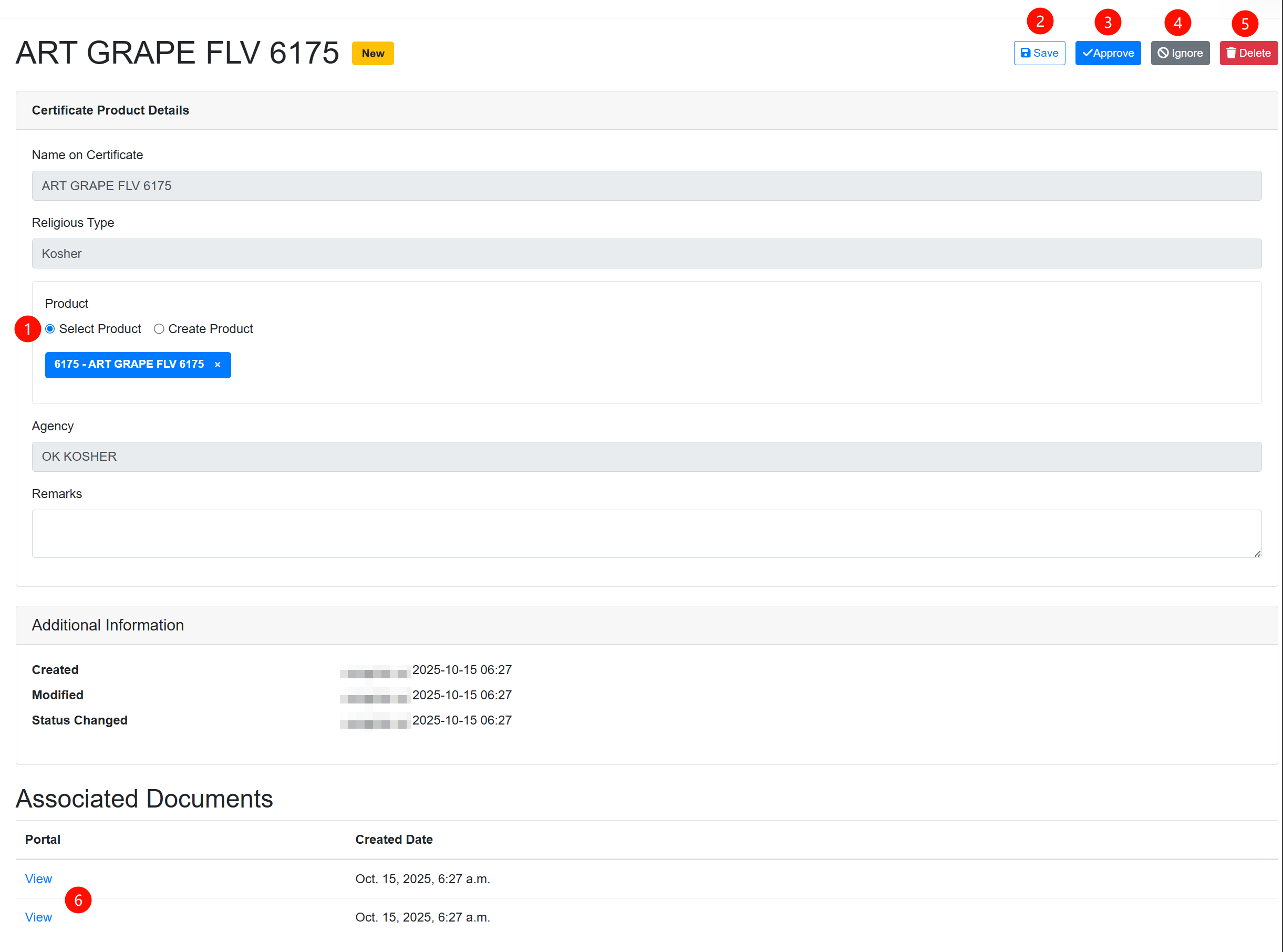
Product Selection Mode ①:
- Enter product code or name to search an IFF code if it exists.
- Click to select an existing IFF product code for the product
Create IFF Product Code:
- Enter new product code and name
- System automatically creates the IFF product code and associates it with the product
Actions:
Save ②: Temporarily save the edited information without changing the product status. This allows you to preserve your changes and continue editing later or an approver to approve it later.
Approve ③: Approve this certificate product and change its status to “Reviewed”. The product will be moved to the “Reviewed Certificate Products” section for final management.
Ignore ④: Mark this certificate product as ignored and change its status to “Ignored”. This action is used when a product is not relevant or should be excluded from further processing. Ignored products can be viewed in the “Reviewed Certificate Products” section.
Delete ⑤: Permanently delete this certificate product from the system. This action cannot be undone and will remove all associated data including product mappings and documents.
Associated Documents ⑥
- View the all associated documents for this product mapping task. Click the “View” button to enter Document Insighter extraction page.
When a mapping task is completed, the system will automatically trigger the updating product code mapping for all the associated documents in Document Insighter portal. Once all product codes in one certificate are assigned, the system will automatically post the document to IFF SharePoint.
3.3.2 2. Reviewed Certificate Products
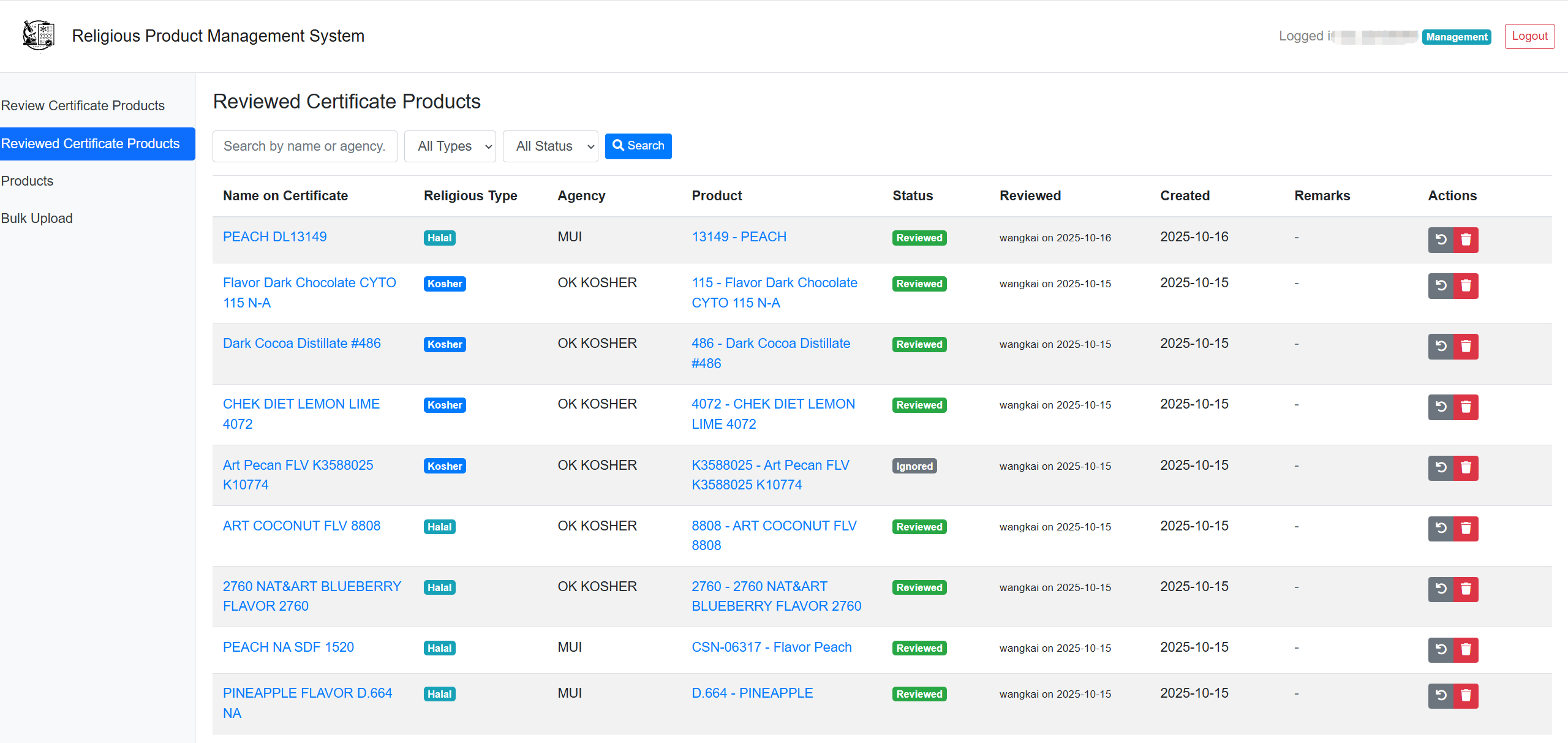
View and manage certificate products that have completed review.
3.3.2.1 2.1 Filter Options
- Search: Search by product name or agency
- Religious Type: Filter by Kosher/Halal
- Status: Filter by Reviewed/Ignored
3.3.2.2 2.2 Action Functions
- Reopen for Review: Change product status back to “New”
- Delete: Permanently delete that product mapping task
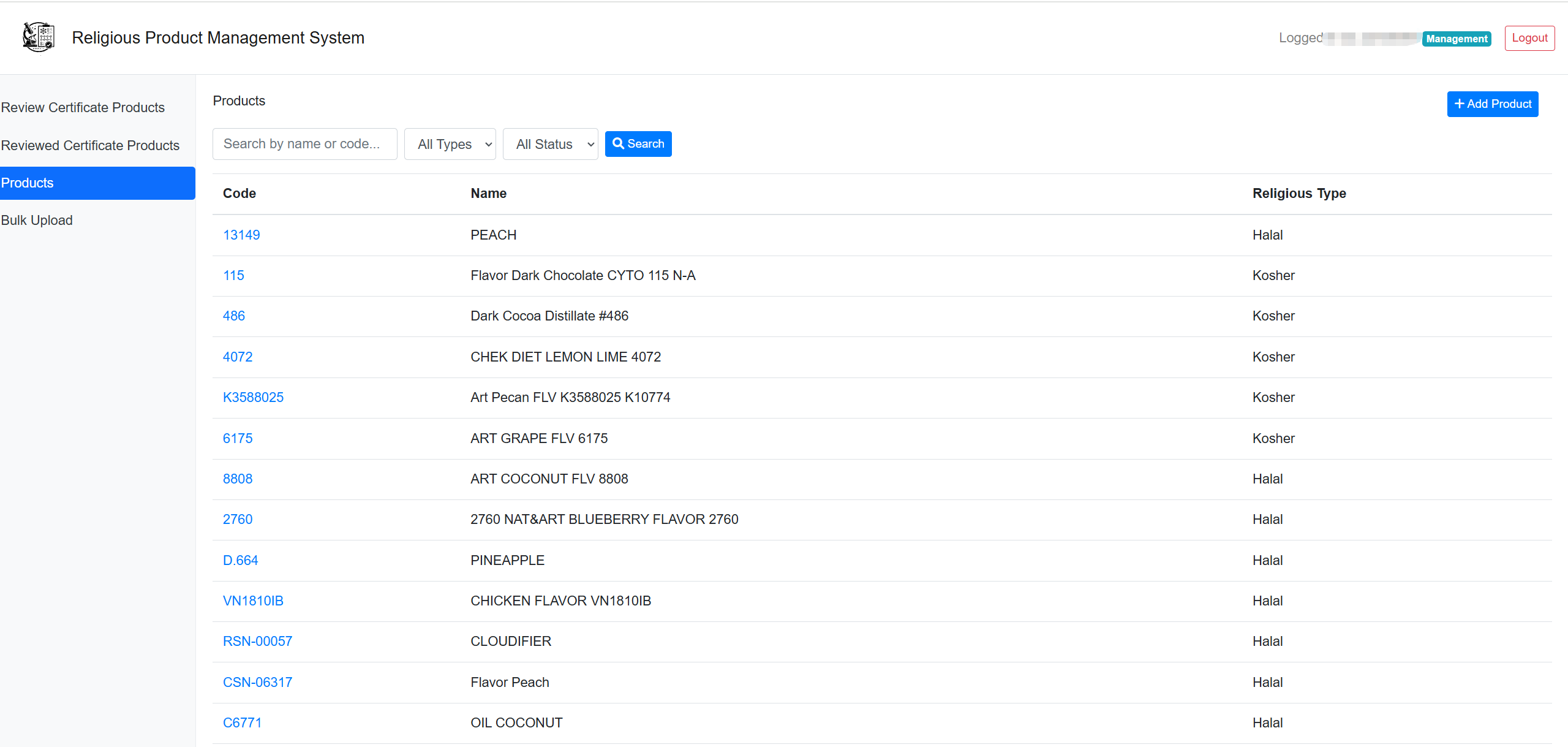
3.3.3 3. Products
You can search or view existing product codes and names, or use the “Add Product” button to upload new ones.
3.3.4 4. Bulk Upload
The Bulk Upload functionality allows batch import of product codes and certificate products through Excel files.
3.3.4.1 4.1 Upload Page
User can edit the exported xlsx file to perform bulk modifications. Type in the IFF product code in the “Product Code” column to update the Status to “REVIEWED”.

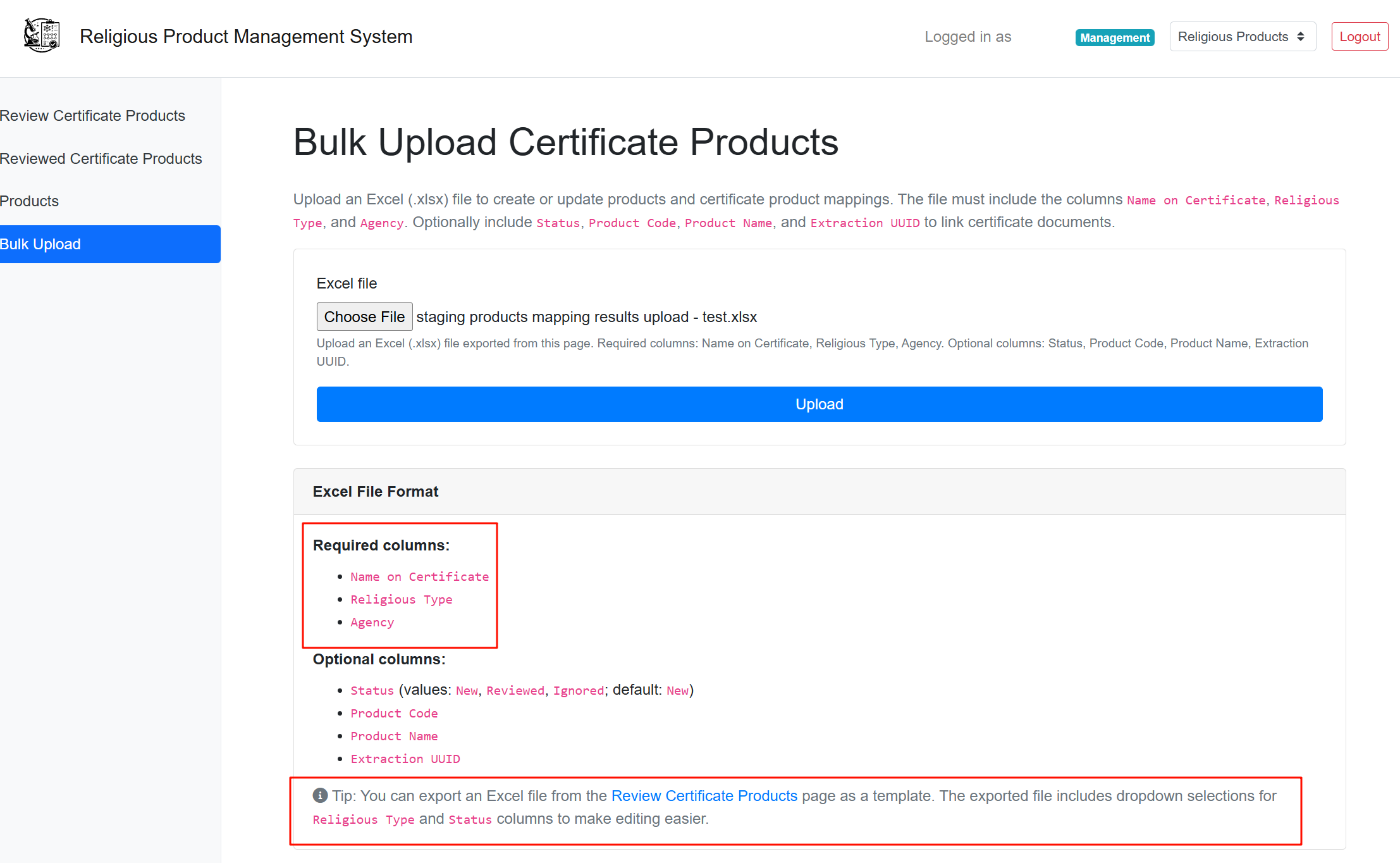
Upload Steps:
- ① Select Excel file (.xlsx format) and open it
- ② Click “Upload” button
- System processes and displays results
3.3.4.2 4.2 Excel File Format Requirements
Required Columns:
- Name on Certificate: Product name on certificate
- Religious Type: Religious type (Kosher/Halal)
- Agency: Certification agency
Optional Columns:
- Status: Status (New/Reviewed/Ignored, defaults to New)
- Product Code: IFF product code
- Product Name: Product name
- Extraction UUID: Extraction UUID
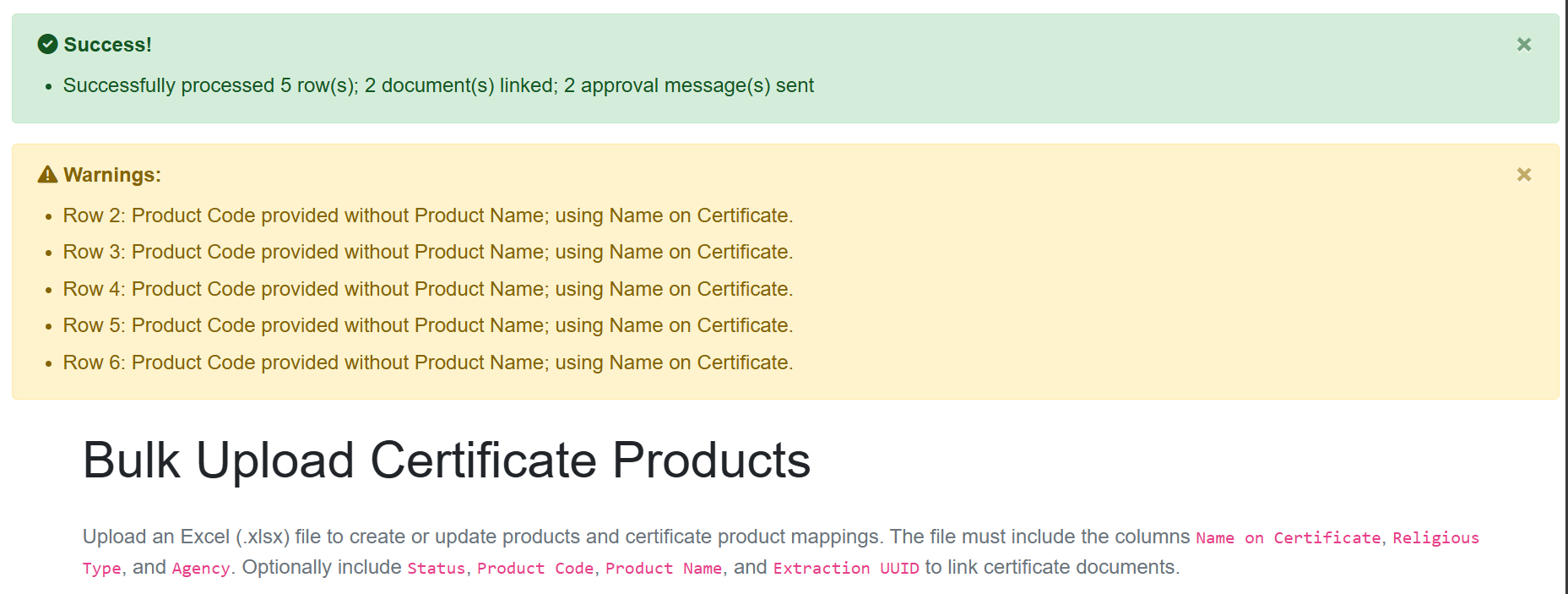
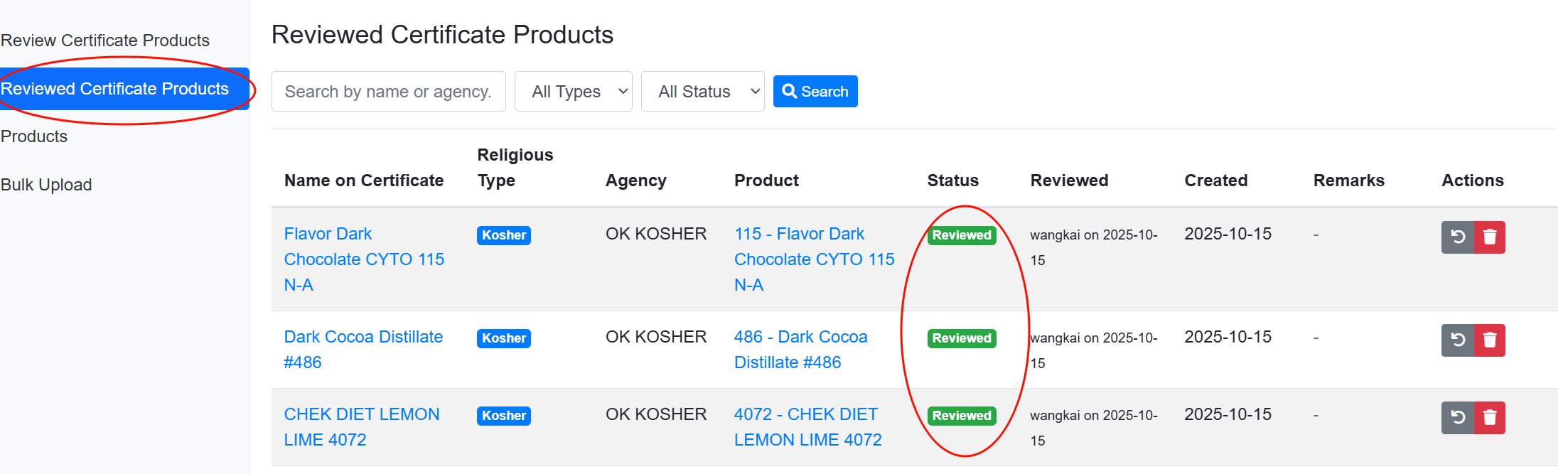
Once the file is uploaded, the corresponding mapping tasks in “Review Certificate Products” page will be moved to “Reviewed Certificate Products” section and updated to “REVIEWED” status automatically.
4 Uploading Documents
4.1 Uploading via Insighter Portal
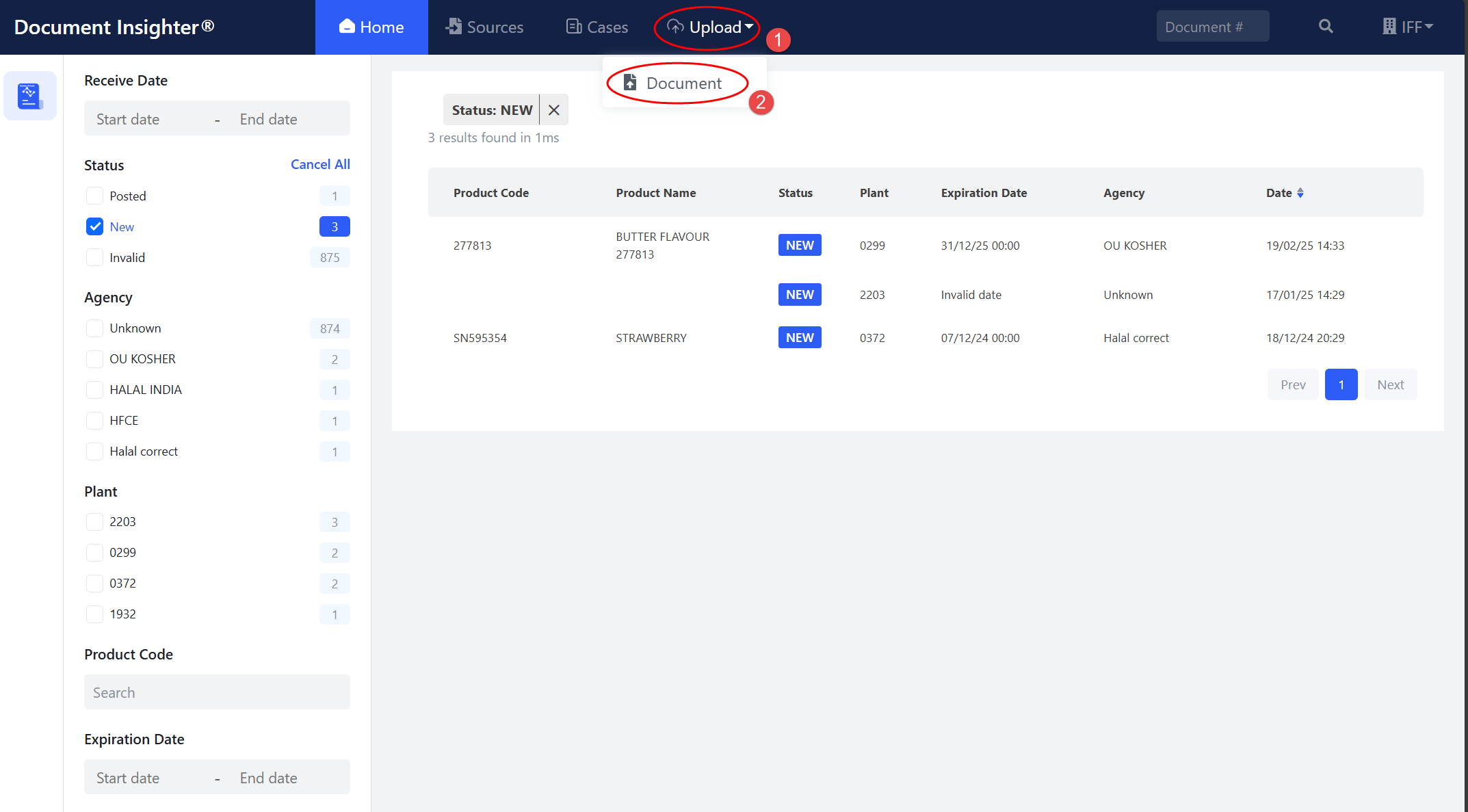
The system supports users upload Religious Certificate documents manually, users can upload the documents to the system by clicking the “Upload” button on the top navigation bar.
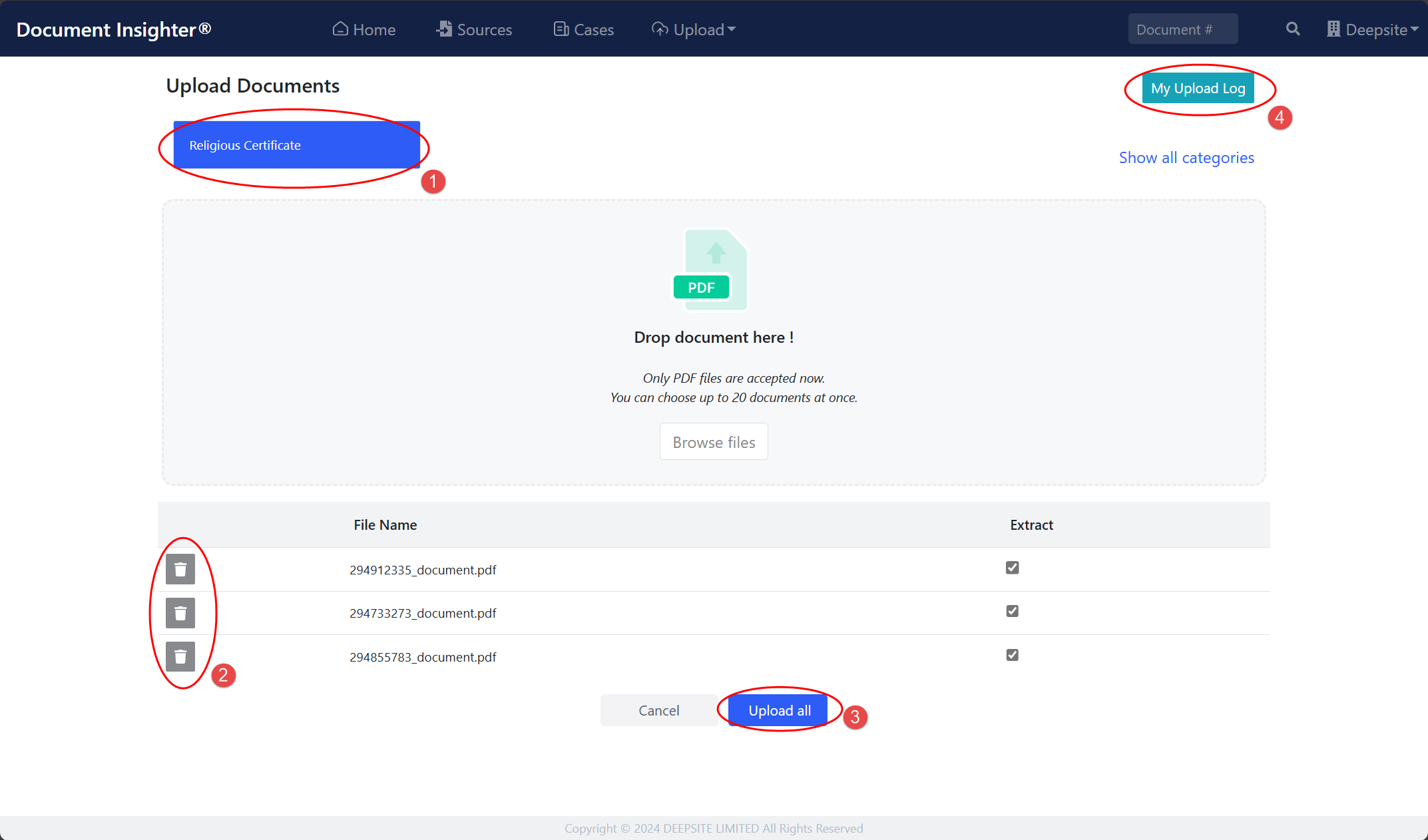
① First, select the type of file you wish to upload.
② You may remove any files from the upload list if needed.
③ Once your list is finalized, click the “Upload” button to complete the process.
④ Finally, click “My Upload Log” to review the status of your uploads.
Please note:
- Only PDF files are accepted at this time.
- You can upload up to 20 documents at once.
 # Technical Support
Help desk information including responsible technical contact phone numbers for assistance is currently available at the following period.
- Phone Support: 9:30 – 18:00 HKT, Mon to Fri
- Email Support (service desk connected): 24-Hours as per Section 3.3 of this agreement.
5 Appendix
5.1 Email Limitation and Requirements
Do not send the same Religious Certificate document to this mailbox multiple times.
Please note that our system can read PDF/JPG/PNG/TIF format and the Religious Certificate documents should be attached directly to the email. The size of one e-mail can’t exceed 5MB. Our system is not able to open attached emails and Zip folders.
The system only process the emails sent or forwarded from the list of approved IFF email senders.